
Overview
Alerts Management lets you create automated alerts triggered by specific conditions on your hosts and endpoints. When a threshold is crossed, Proxidize notifies you through whichever platform you've configured.
⚠️ Available on: Business plan only
Available alert types:
- Host CPU Usage
- Host RAM Usage
- Host Data Usage
- Host Down
- Endpoint Status
Supported delivery platforms:
You can find Alerts Management in the left sidebar of your Cloud Dashboard.
Creating an Alert
Regardless of which platform you use, all alerts are created the same way:
- Go to Alerts Management in the sidebar
- Click New Alert
- Fill in the alert details:
- Name: a label to identify this alert
- Host: the host to monitor
- Type: the condition to trigger on (CPU, RAM, Data Usage, Host Down, Endpoint Status)
- Receive On: the platform to deliver the alert to
- Threshold / Limit: the value at which the alert fires (where applicable)
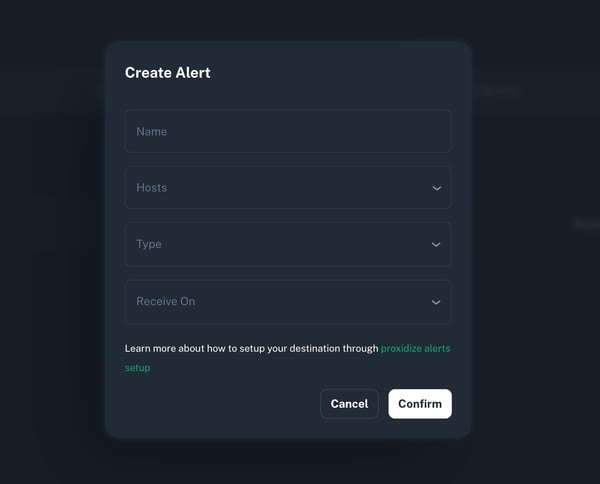
- Click Confirm
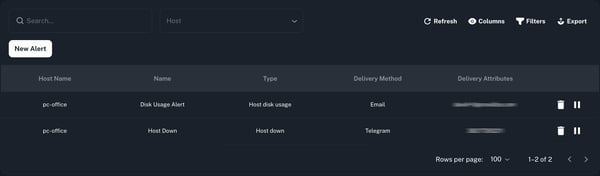
Once created, the alert appears in the table with its name, host, type, and current status. You can pause or delete any alert from this table at any time.
💡 Note: Each platform requires a one-time setup before you can select it when creating an alert. See the relevant section below.
To receive alerts by email, the destination address must be added as a sub-account under your main Proxidize account first.
- Add the email address as a sub-account
- Once added, go to Alerts Management and create a new alert
- Select Email as the delivery platform, your sub-account emails will appear in the dropdown
- Select the address you want to receive the alert and confirm
Webhook
Webhook alerts send an HTTP request to a URL of your choice whenever an alert is triggered, useful for integrating with custom systems or automation pipelines.
When creating an alert and selecting Webhook as the platform, you'll be prompted for:
- URL: the endpoint to send the request to
- Method: GET or POST
No external setup is required beyond having a URL ready to receive the request.
Slack
1. Create a Slack App
- Go to api.slack.com/apps and click Create an App
- Select From scratch, give it a name (e.g. "Proxidize Alerts"), and choose your workspace
- From the Features menu, select Incoming Webhooks and toggle it on
- Click Add New Webhook to Workspace, select the channel you want alerts posted to, and click Allow
- Copy the generated Webhook URL
2. Create the Alert
- Open Alerts Management on your Proxidize dashboard and create a new alert
- Select Slack as the platform and paste the Webhook URL
- Confirm to save
Discord
1. Invite the Proxidize Bot
- Click this link to invite the Proxidize Bot to your Discord server
- Select the server you want to use and complete the authorization process
-1.png?width=439&height=600&name=image%20(1)-1.png)
2. Enable Developer Mode
- In Discord, go to User Settings → Advanced
- Toggle on Developer Mode
-1.png?width=600&height=347&name=image%20(4)-1.png)
3. Get Your Server ID and Channel ID
- Right click on your server icon and select Copy ID to get the Server ID
- Right click on the channel you want alerts sent to and select Copy ID to get the Channel ID
4. Create the Alert
- Open Alerts Management on your Proxidize dashboard and create a new alert
- Select Discord as the platform
- Enter the Server ID and Channel ID
- Confirm to save
Telegram
Telegram alerts can be delivered to a Channel, a Group, or your Private Messages. The setup differs slightly depending on which you use, but all three require adding @ProxidizeBot and retrieving a Chat ID.
Option A: Telegram Channel
- Open Telegram web and go to your channel
- Click the channel name to open channel info, then tap the Edit button (pencil icon)
- Go to Administrators → Add Administrator
- Search for @ProxidizeBot and add it
- In the permissions screen, enable only Post Messages and disable everything else, then confirm
- While viewing the channel in a web browser, copy the Chat ID from the URL, include the dash if present (e.g.
-1002xxxxxxxx)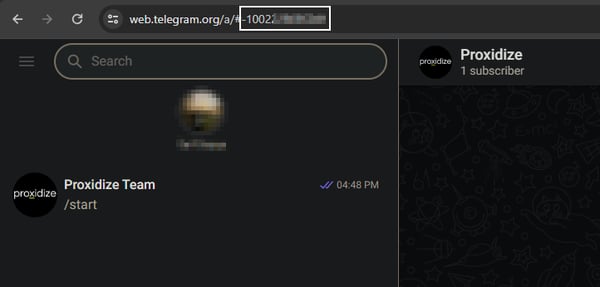
- Go to Alerts Management in Proxidize, create a new alert, select Telegram, and paste the Chat ID
Option B: Telegram Group
- Open Telegram web and go to your group
- Click the group name to open group info, then tap Add Members
- Search for @ProxidizeBot and add it to the group
- While viewing the group in a web browser, copy the Chat ID from the URL, include the dash if present
- Go to Alerts Management in Proxidize, create a new alert, select Telegram, and paste the Chat ID
Option C: Private Messages
- Go to telegram.me/ProxidizeBot and click Open in Web
- Click the Start button to initiate the bot
- Click the burger menu (☰) and navigate to Saved Messages
- While viewing Saved Messages in a web browser, copy the Chat ID from the URL, include the dash if present
- Go to Alerts Management in Proxidize, create a new alert, select Telegram, and paste the Chat ID
Need Help?
If you have any questions, concerns, or need further clarification, feel free to reach out to us via live chat or email us directly at support@proxidize.com.