
The Hardware tab is located in the left sidebar of your Cloud Dashboard under the Dashboard section. It contains five sub-sections:
- Endpoints: view and manage all connected endpoints (modems/phones)
- Hosts: view and manage all connected hosts (servers)
- SIM Cards: view SIM card information across all endpoints
- Smart Power: manage smart power strips and plugs remotely
- USB Port Map: map endpoints to their physical USB ports
Endpoints
The Endpoints tab gives you a full overview of all connected endpoints across your hosts, along with the ability to perform actions on each one individually or in bulk.
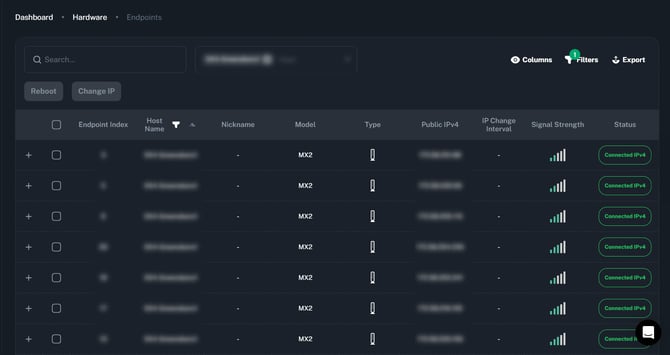
For full details on the Endpoints tab, including all columns, statuses, filtering options, and available actions, see the dedicated Endpoints Tab article.
Hosts
Available on: All plans (Free, Personal, Business)
The Hosts tab lists all hosts (servers) connected to your account. For each host you can see:
- Name: the host identifier
- IPv4 / IPv6: public IP addresses
- Local IP: the host's local network IP
- Country: the host's geographic location
- Last Active: timestamp of the last activity
- Endpoint Count: number of endpoints connected to this host
- Type: the host type (e.g. Phone/Server)
- Status: The current status of the host (e.g. Connected/Disconnected)
- Software Version: the current Proxidize software version running on the host
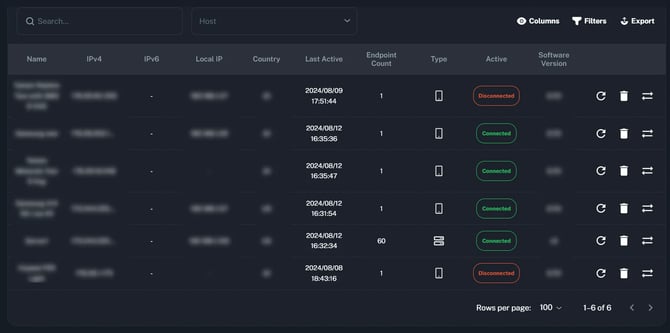
From this page you can also:
- Reboot a host remotely
- Change IPs for all endpoints on a specific host at once
- Remove a host from your account
SIM Cards
Available on: Personal and Business plans
The SIM Cards tab provides a centralized view of all SIM card information across your endpoints. Each row corresponds to one endpoint and displays:
- Endpoint Index: The index number of the endpoint
- Carrier: The mobile carrier for that SIM
- ICCID: The SIM card's unique identifier
- IMSI: The international mobile subscriber identity
- Phone Number: The phone number associated with the SIM
- Host Name: The host this endpoint is connected to
You can copy all SIM data, filter by host, customize visible columns, and export the table as a CSV.
Smart Power
Available on: Business plan only
Note: Only Kasa TP-Link smart power strips and plugs are currently supported.
The Smart Power feature lets you scan for and manage smart power devices connected to your Wi-Fi network directly from your Proxidize dashboard, without needing physical access to the hardware.
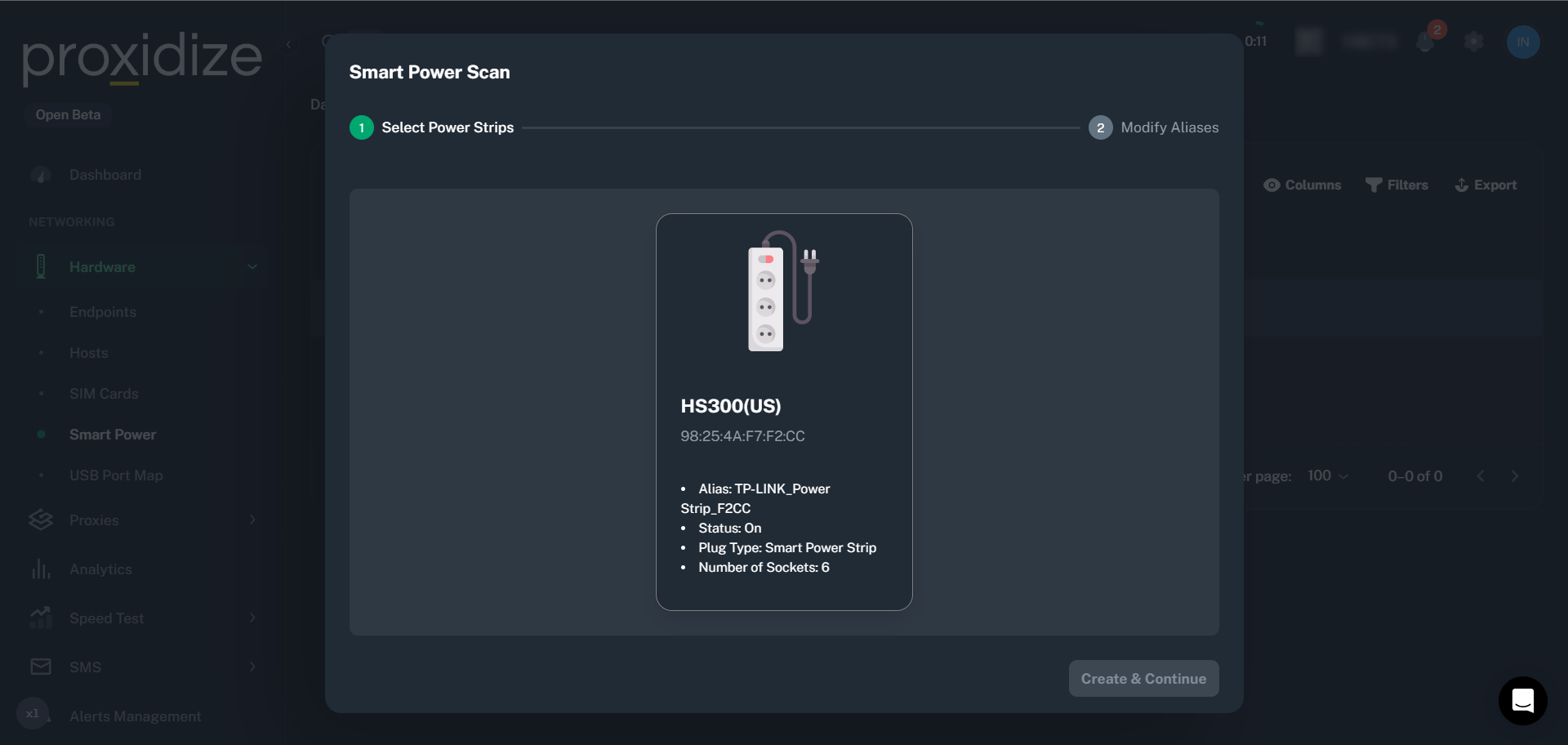
Once a device is detected, you can:
- Turn on / Turn off / Restart the entire strip at once
- Control individual sockets on the strip separately
- View the status of each socket by expanding the row
To get started, go to Hardware → Smart Power and click Smart Power Scan then select the Host. Proxidize will detect any Kasa TP-Link devices on your network. Select the device, assign aliases to each socket if needed, and click Create & Continue.
USB Port Map
Available on: Business plan only
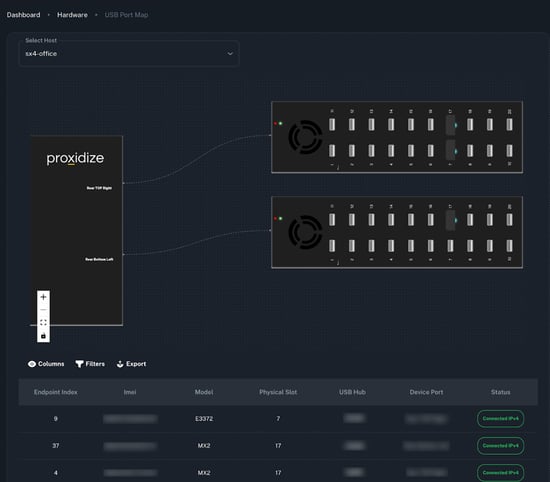
The USB Port Map gives you a visual and tabular overview of how your endpoints map to physical USB ports on your hardware, useful for troubleshooting connectivity issues or identifying which physical modem corresponds to which endpoint index.
For users with Proxidize hardware (e.g. HX1 USB Hub), a 2D diagram of the host, USB hubs, and connected endpoints is displayed at the top of the page.
Below the diagram, a table lists each endpoint with:
- Endpoint Index: The endpoint's index number in the dashboard
- IMEI: The modem's IMEI number
- Model: The modem model (e.g. MX2, E3372)
- Physical Slot: The physical slot number on the hardware
- USB Hub: Which USB hub the modem is connected to
- Device Port: The specific port on the USB hub
- Status: Current connection status
Need Help?
If you have any questions, concerns, or need further clarification, feel free to reach out to us via live chat or email us directly at support@proxidize.com