
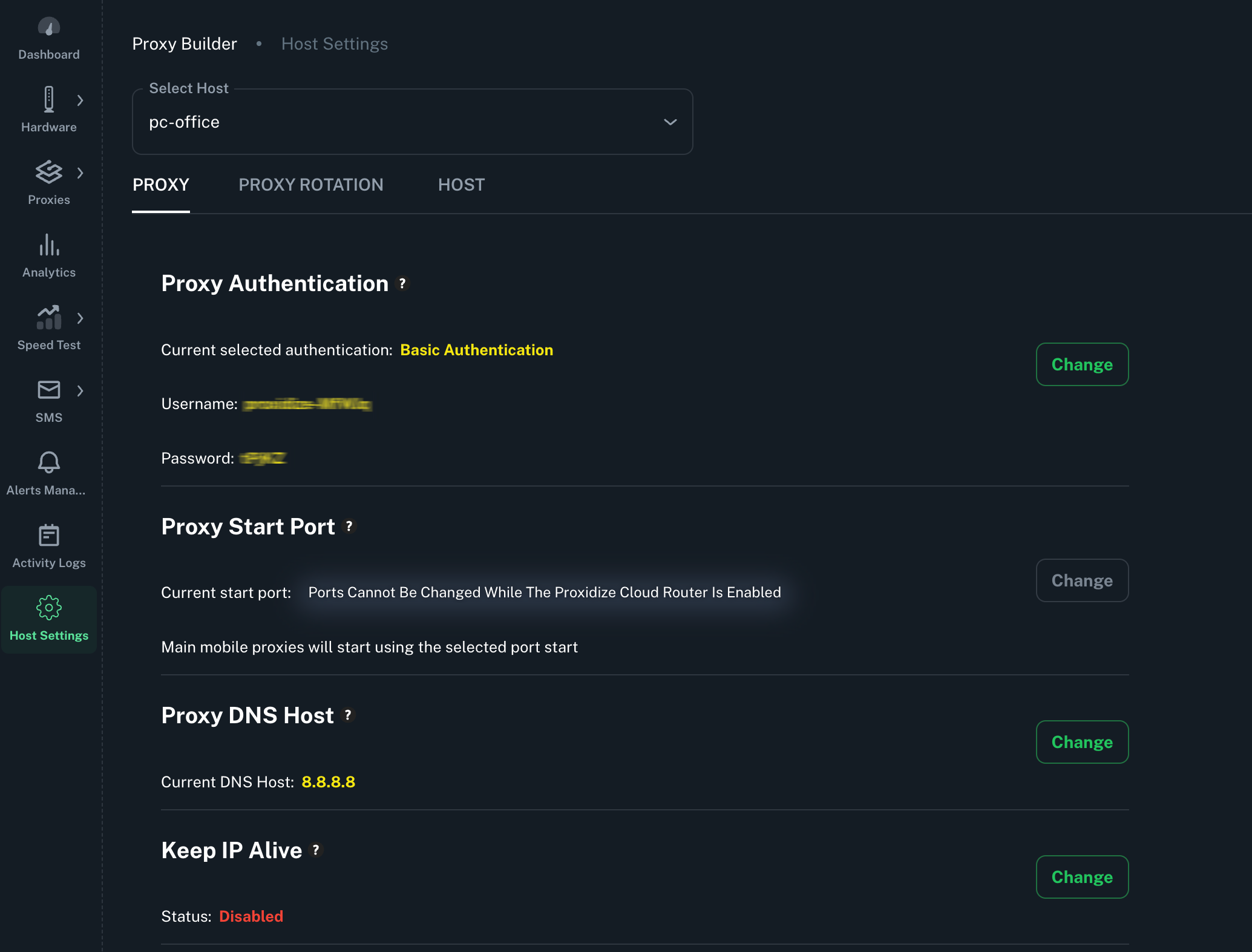
Host Settings is found under Activity Logs in the left sidebar of your Cloud Dashboard. Use the host dropdown at the top to switch between hosts.
Use Host Settings when you need to:
-
Configure how your proxies behave (authentication, ports, DNS)
-
Control IP rotation and scheduling
-
Adjust advanced networking or device-level settings
-
Troubleshoot connectivity or performance issues
The options available within each tab depend on your host type, Linux Agent hosts have significantly more controls than Android Agent hosts. Full details for each setting are covered below.
The page is divided into three tabs, each covering a different aspect of your host's configuration:
- Proxy: controls proxy authentication, ports, DNS, logging, IP behavior, and indexing
- Proxy Rotation: configures automatic and randomized IP rotation schedules
- Host: manages host-level settings such as the Cloud Router, device parameters, and remote reboot
Proxy Tab:
| Setting | Linux Agent | Android Agent |
|---|---|---|
| Proxy Authentication | ✅ | ✅ |
| Proxy Start Port | ✅ | ❌ |
| Proxy DNS Host | ✅ | ✅ |
| Keep IP Alive | ✅ | ❌ |
| Index Locking Type & Reset Proxy Indexing | ✅ | ❌ |
| Proxy Logging, Scheduled Logs Deletion & Clear All Proxy Logs | ✅ | ✅ |
| Refresh Proxies | ✅ | ❌ |
| Change IP Duration | ❌ | ✅ |
Proxy Rotation Tab:
| Setting | Linux Agent | Android Agent |
|---|---|---|
| Automatic Rotation | ✅ | ✅ |
| Randomized Automatic Rotation | ✅ | ❌ |
| Terminate Rotation Schedule | ✅ | ✅ |
Host Tab:
| Setting | Linux Agent | Android Agent |
|---|---|---|
| Router Enabled | ✅ | ❌ |
| Host Name | ✅ | ✅ |
| SMS Forwarding | ✅ | ❌ |
| Device TTL | ✅ | ❌ |
| Device MTU | ✅ | ❌ |
| Passive OS Spoofing | ✅ | ❌ |
| Reboot | ✅ | ❌ |
| Generate Remote Support Session | ✅ | ❌ |
| Generate System Report | ✅ | ❌ |
Tip: Most settings have a tooltip, hover over the (?) icon next to any setting to get a quick description without leaving the page.
Proxy Tab
Proxy Authentication
Available on: All plans (Free, Personal, Business)
Controls how clients authenticate when connecting to your proxies. Available methods depend on your host type:
Android Agent: Basic Authentication only
| Method | Plans | Description |
|---|---|---|
| Username & Password | All plans | A username and password are pre-generated when you activate your subscription |
| Custom Username & Password | Personal, Business | Set your own username and password for your generated proxies |
Linux Agent: Basic Authentication and IP Authentication
| Method | Plans | Description |
|---|---|---|
| Username & Password | All plans | A username and password are pre-generated when you activate your subscription |
| Custom Username & Password | Personal, Business | Set your own username and password |
| IP Authentication | Business only | Whitelist specific IP addresses that are allowed to access your proxies. Not functional when the Cloud Router is enabled |
Proxy Start Port:
Available on: All plans Linux Agent only
Sets the port number your proxies start from. The default is 2000, meaning your first endpoint's proxies will be on ports 2001 (HTTP IPv4), 3001 (SOCKS IPv4), 5001 (HTTP IPv6), and 6001 (SOCKS IPv6).
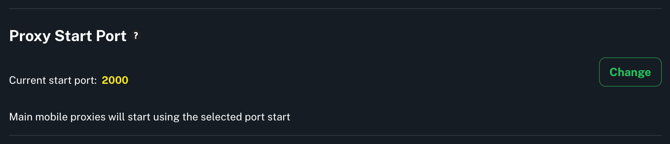
Note: This setting only takes effect when the Cloud Router is disabled.
Proxy DNS Host:
Available on: Personal and Business plans
Sets the DNS server your proxies use to resolve domain names. By default this is set to Google's public DNS (8.8.8.8), which works reliably across most carriers and networks.

You can change this to any DNS server, for example, if you run a local DNS server or prefer an alternative public DNS like Cloudflare (1.1.1.1).
Keep IP Alive
Available on: Business plan Linux Agent only
Enables Sticky IPs which keeps your proxy IPs from changing by maintaining a constant heartbeat signal to the carrier, preventing the connection from being seen as idle.
Due to global IPv4 shortage, carriers routinely reclaim IP addresses from idle devices and reassign them. Keep IP Alive counters this by keeping the connection active, so your endpoints hold onto the same IP for as long as possible.
Note: This does not guarantee a permanently fixed IP. Some carriers enforce IP reassignment on a fixed schedule regardless of activity. If you notice frequent unexpected IP changes, enabling this feature is the first thing to try.
Enable it by clicking Change next to Keep IP Alive and toggling it on.

Index Locking Type & Reset Proxy Indexing
Available on: All plans Linux Agent only
Controls how endpoint index numbers are assigned. Two modes are available:
| Mode | Plans | Behavior |
|---|---|---|
| Insertion Order Lock | All plans | Endpoints are indexed in the order they connect. The earliest connected endpoint gets the lowest available index |
| Physical Slot Lock | Business only | Endpoints are indexed by their physical USB port number on the hub. Requires Proxidize official hardware |

Reset Proxy Indexing: re-indexes all proxies back to 1
Useful after removing endpoints or when index numbers have become non-sequential. Only applies when using Insertion Order Lock.

Proxy Logging, Scheduled Logs Deletion & Clear All Proxy Logs
Proxy Logging & Scheduled Logs Deletion, Available on: All plans - Linux Agent only.
-
Proxy Logging enables or disables log recording for all endpoints on this host. When disabled, no request data is recorded.
-
Scheduled Logs Deletion automatically deletes proxy logs across all endpoints on this host at a set interval, days, weeks, or months.
-
Clear All Proxy Logs permanently deletes all proxy logs stored on the selected host across every endpoint.
⚠️ Clear All Proxy Logs is irreversible. Logs cannot be recovered once cleared.
→ See the full Logs & Logging article for more details.
Refresh Proxies
Available on: All plans - Linux Agent only
Forces an immediate refresh of all proxy connections on this host. Useful after making configuration changes that require proxies to restart, or when experiencing issues with USB modems. This should be the first thing you try before contacting support.

Change IP Duration
Available on: All plans — Android Agent only
Controls how long the Android device stays in airplane mode during an IP rotation before toggling back off. When a rotation is triggered, the device enables airplane mode to drop the carrier connection, waits for the configured duration, then disables airplane mode to reconnect and obtain a new IP.
Proxy Rotation Tab
Automatic Rotation
Available on: Personal and Business plans — Linux and Android Agent
Sets a host-wide automatic IP rotation schedule. All endpoints on this host rotate at the chosen interval. The interval can be set in minutes, hours, or days.
Randomized Automatic Rotation
Available on: Business plan — Linux Agent only
Instead of rotating at a fixed interval, this randomizes the rotation timing. Options include randomizing by minutes, hours, days, or fully randomizing both the period and interval. Useful for making rotation patterns less predictable.
Terminate Rotation Schedule
Available on: Personal and Business plans — Linux and Android Agent
Cancels any active automatic rotation schedule on this host without setting a new one.
Host Tab
Router Enabled
Available on: All plans — Linux Agent only
Enables the Proxidize Cloud Router, which handles proxy port forwarding automatically. When enabled, ports are assigned by the router. When disabled, ports follow sequential assignment starting from the Proxy Start Port value.
Proxy speed is capped based on your plan:
| Plan | Speed Cap |
|---|---|
| Free | Up to 5 Mbps |
| Personal | Up to 25 Mbps |
| Business | Up to 100 Mbps |
Host Name
Available on: Business plan — Linux and Android Agent
Sets a custom nickname for this host to help identify it across the dashboard.

SMS Forwarding
Available on: Business plan — Linux Agent only
Enables SMS forwarding for this host, allowing incoming SMS messages to be sent as webhook calls to an external URL. Must be enabled here before forwarding rules can be created.
→ See the full SMS article for setup details.
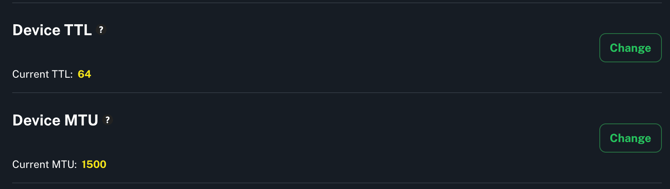
Device TTL and MTU (Advanced)
Available on: Business plan — Linux Agent only
TTL (Time to Live) defines how long a data packet remains valid before being discarded in transit. The current value is displayed next to this setting and can be changed using the Change button.
MTU (Maximum Transmission Unit) sets the largest packet size that can be transmitted over your network, measured in bytes. The current value is also displayed next to this setting and can be changed using the Change button.
Passive OS Spoofing
Available on: Business plan — Linux Agent only
Changes the OS fingerprint your proxies present to target servers. By default proxies appear to run Linux. You can change the fingerprint to better blend traffic with typical user behavior.

Available OS fingerprints: Windows, Windows XP, Linux, Android, iOS, macOS
Reboot
Available on: Business plan — Linux Agent only
Remotely reboots the entire host. All endpoints on this host will be temporarily disconnected until the host comes back online.
Generate Remote Support Session
Available on: All plans — Linux Agent only
Generates a secure SSH session allowing the Proxidize support team to remotely access and troubleshoot your host. Each session has an expiration date, expired sessions can no longer be used to connect.
Generate System Report
Available on: All plans — Linux Agent only
Generates a full system diagnostic report for this host. Useful for troubleshooting and sharing with the support team when investigating issues.
This section explains various host management features in the Proxidize Proxy builder dashboard, including enabling the Cloud Router for simplified proxy connections, setting host nicknames, adjusting Device TTL, passive OS spoofing, and configuring Device MTU. It also details generating secure remote support sessions with session expiration for enhanced security and troubleshooting.
Enabling The Cloud Router
This feature is available to all plans, noting that the speeds of the proxies will be capped based on your Proxidize Proxy Builder plan.
-
Free: Proxies speed capped at 5Mbps.
-
Personal: Proxies speed capped at 25Mbps.
-
Business: Proxies speed capped at 100Mbps.
By navigating to your host tab section under the hosts tab you can enable forwarding proxies through the Proxidize Cloud Router simplifies the process of managing your proxy connections. This feature eliminates the need for local port forwarding, allowing you to connect easily and securely without the hassle of configuring ports on your local network. This is especially useful for users who want to avoid the security risks of traditional port forwarding while maintaining seamless access to their proxy services.

Host Nickname
This feature is only available on the Business plan.
By navigating to your host tab section under the hosts tab, you will find the option to set a custom nickname for your host based on your preference using the button shown in the image below.

Device TTL
This feature is only available in the Business plan.
TTL, or Time to Live, is a term used in networking and computing to define how long data should exist before it is discarded or refreshed. It is an essential concept that helps manage data flow and ensure efficient operation of networks and systems.
You can change the TTL of your host By navigating to your host tab section under the hosts tab using the button shown in the image below.

Noting that we don't advise changing the TTL, and please contact our support team if you have an eligible plan before changing the TTL.
Passive OS Spoofing
This feature is only available in the Business plan.
What is Passive OS Fingerprinting?
Passive OS spoofing/fingerprinting is a technique used to determine a remote system's operating system (OS) without actively probing it. Instead of actively sending packets to the target system, passive OS fingerprinting relies on analyzing the characteristics of network traffic generated by the target system, such as TCP/IP stack behavior, packet size, and how packets are fragmented and reassembled.

In simple terms, this technique will allow you to spoof the OS used for all your requests when using the proxies if a different OS is selected rather than the original OS running on the machine.
By default, Linux is the OS used when running the proxies. It can be changed to Windows with a few clicks to spoof the OS, however you can change it to whatever OS you prefer by using the "Change" button next to the Passive OS.
Generate Remote Support Session
This feature is available on all Proxidize Proxy Builder plans.
This article provides detailed instructions on generating a remote support session using two different methods. This session allows for SSH access to troubleshoot and manage the server remotely.

Session Expiration
Each remote support session comes with an expiration date. The session information includes the expiry date, ensuring security and limiting access beyond a specified timeframe.
Expired Sessions
If a session has expired, the session information will still be visible, but attempts to access it will be unsuccessful. Ensure to check the expiration date before attempting to use the provided information.
Note: Always exercise caution and ensure the confidentiality of session information. Regularly updating sessions enhances security and control over remote access.
These methods empower users to initiate remote sessions efficiently, enabling seamless server management and troubleshooting. Ensure the confidentiality of session information for security purposes.
Device MTU
This feature is only available on the Business plan.
MTU, or Maximum Transmission Unit, is a networking term that refers to the largest size of a data packet that can be transmitted over a network. It is measured in bytes and varies depending on the network type and protocol used.
You can change it on the Proxidize dashboard by navigating to your host tab section under the hosts tab using the button shown in the image below.

Noting that we don't advise changing the MTU, and please contact our support team if you have an eligible plan before changing the MTU.
Need Help?
If you have any questions, concerns, or need further clarification, feel free to reach out to us via live chat or email us directly at support@proxidize.com.