
How do I manage my subscription in the Proxidize app?
You can manage your Proxidize subscriptions directly from the Subscriptions page inside the Proxidize app.
From this page, you can:
-
view your active and past subscriptions
-
Check subscription details
-
View related orders
-
Cancel an active subscription
-
Reactivate a subscription that is pending cancellation, and
-
Complete payment for subscriptions with a pending payment.
Before you start
Log in to your Proxidize account at:
View your subscriptions
- Log in to the Proxidize app.
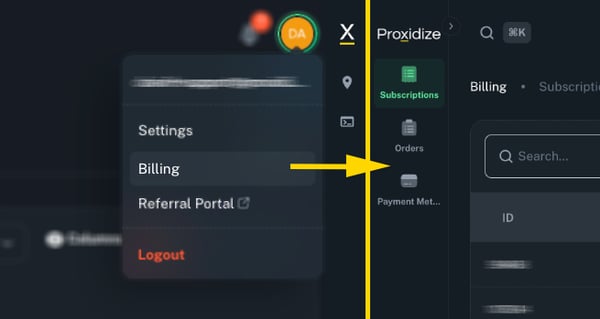
- From the left sidebar, click Subscriptions.
- You will see a list of your subscriptions.
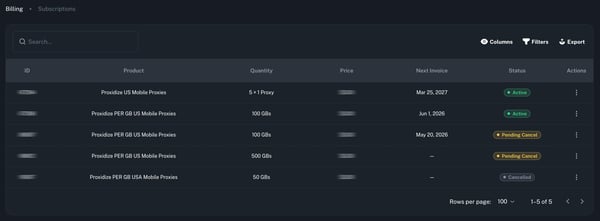
Each subscription row shows important details, including:
| Column | Description |
|---|---|
| ID | The subscription ID. |
| Product | The product connected to the subscription. |
| Quantity | The number of proxies, endpoints, or GB included in the subscription. |
| Price | The subscription price/Month. |
| Next Invoice | The next billing date. |
| Status | The current status of the subscription. |
| Actions | Available actions for that subscription. |
Understand subscription statuses
Your subscription status shows the current state of the subscription.
| Status | What it means |
|---|---|
| Active | The subscription is currently active. |
| On Hold | The subscription requires payment before it can continue normally. |
| Pending Cancel | The subscription is scheduled to cancel, but can still be reactivated. |
| Cancelled | The subscription has been cancelled. |
Note: Available actions may change depending on the subscription status and product type.
Manage a subscription
To manage a subscription:
- Find the subscription you want to manage.
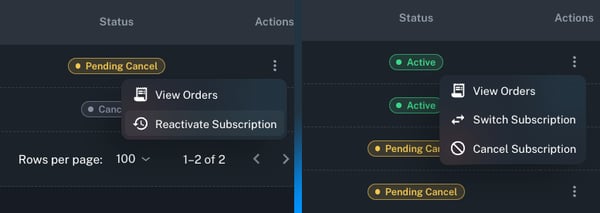
- Click the three-dot menu under the Actions column.
- Select the action you want to perform.
Depending on the subscription status, you may see options such as:
| Action | What it does |
|---|---|
| View Orders | Shows orders related to that subscription. |
| Renew / Pay | Lets you complete payment for a subscription with a pending payment. |
| Reactivate Subscription | Reactivates a subscription that is pending cancellation. |
| Cancel Subscription | Cancels an active subscription. |
| Buy GB | Allows you to buy additional GB for GB-based subscriptions. |
| Switch Subscription | Allows you to upgrade your number of proxies for per-Proxy-based subscriptions. |
View orders related to a subscription
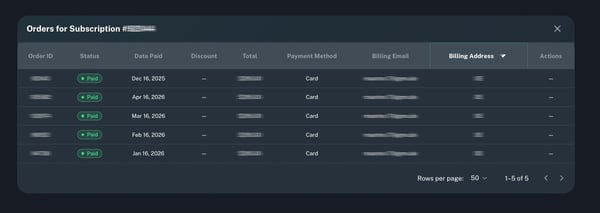
Use View Orders to see orders connected to a specific subscription.
This is useful when you want to review payments, invoices, renewals, or billing history for that subscription.
To download an invoice, see How to Download an Invoice.
Renew an On Hold subscription
If a subscription is marked as On Hold, you can complete the payment using the available renewal action from the Actions menu.
After the payment is completed, the subscription status should update automatically.
For detailed steps, see How to Pay After a Failed Payment.
Reactivate a subscription pending cancellation
If your subscription is marked as Pending Cancel, you can use Reactivate Subscription to keep it active.
This is useful if you cancelled by mistake or changed your mind before the cancellation is completed.
Cancel a subscription
If your subscription is active, you can cancel it from the Actions menu.
After confirming cancellation, the subscription will move to Pending Cancel and will remain active until the end of the current billing period.
For detailed steps, see How to Cancel a Proxidize Subscription.
Quick FAQ
1. Where can I view all my subscriptions?
You can view your subscriptions from the Subscriptions page in the Proxidize app.
This page shows your active and past subscriptions, including the subscription ID, product, quantity, price, next invoice date, status, and available actions.
2. Why do I see different actions for different subscriptions?
Available actions depend on the subscription status and product type.
For example, an active subscription may show options such as View Orders, Switch Subscription, or Cancel Subscription. A subscription that is pending cancellation may show Reactivate Subscription.
3. What does On Hold mean?
On Hold means the subscription requires payment before it can continue normally.
You can renew the subscription from the Subscriptions page or pay the related order from the Orders page.
4. What does Pending Cancel mean?
Pending Cancel means the subscription is scheduled to cancel at the end of the current billing period.
You will still have access to your proxies until the next billing date. If you change your mind before the cancellation is completed, you can reactivate the subscription.
5. Where can I download my invoice?
Invoices can be downloaded from the Orders page by clicking the PDF button next to a paid order.
You can also click View Orders from a subscription to review orders related to that specific subscription.
6. Can I upgrade or downgrade my subscription from this page?
Yes. For eligible subscriptions, click the three-dot menu under the Actions column and select Switch Subscription.
This will take you to the relevant page where you can upgrade, downgrade, or change the subscription.
For detailed steps, see How to Upgrade, Downgrade, or Change Your Subscription.
7. Can I cancel a subscription from this page?
Yes. Click the three-dot menu under the Actions column and select Cancel Subscription.
After confirming, the subscription will move to Pending Cancel and remain active until the end of the current billing period.
Need Help?
If you have any questions, concerns, or need further clarification, feel free to reach out to us via live chat or email us directly at support@proxidize.com.