
What This Does
Changing your account email updates the email address you use to log in to Proxidize.
After the change is complete:
- Your existing products stay attached to your account.
- Your active subscriptions stay attached.
- Your account data is not reset.
- Your KYC verification status stays preserved.
- You will log in using the new email address going forward.
Proxidize uses passwordless login. After changing your email, you will log in with the new email address and receive future login codes there.
Before You Start
Make sure:
- You are logged in to app.proxidize.com.
- You are using the parent account.
- The new email address is valid.
- The new email address is different from your current login email.
- The new email address is not already used by another Proxidize account.
- You can access the inbox for the new email address.
⚠️ Important: Sub-accounts cannot change their own email address. If a sub-account needs a new email address, the parent account admin must remove the sub-account and add it again using the new email address.
Change Your Account Email
- Log in to app.proxidize.com.
- Open the account menu.
- Click Settings.
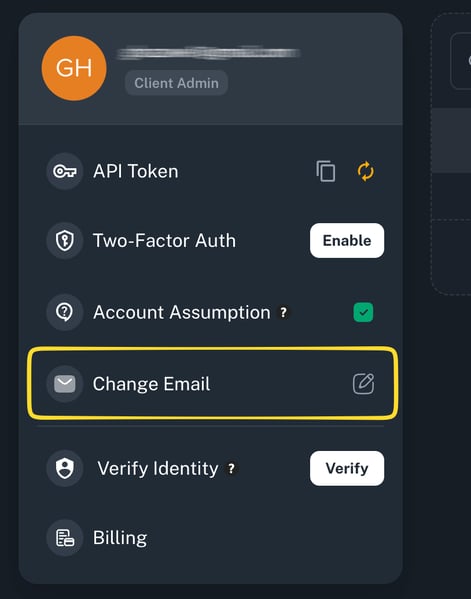
- Click Change Email.
- In the Change Email Address modal, enter your new email address.
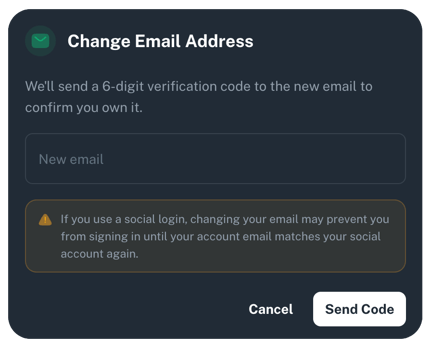
- Click Send Code.
- Check the inbox for the new email address.The verification code is sent to the new email address, not your current email address.
- Enter the 6-digit verification code.
- Click Verify.
- Wait for the email change to finish processing.
💡Note: Once the change is confirmed, you will be automatically logged out. Log in again using the new email address.
Verification Code Rules
- The verification code is sent to the new email address.
- The code expires after 10 minutes.
- There is no resend button in the modal.
- If the code expires, restart the change-email flow from the beginning.
- If you enter the wrong code, you will see an invalid verification code message.
If You Cancel or Close the Modal
If you cancel before submitting the new email address, no change request is sent.
If you cancel or close the modal during the code step, the email address is not changed.
To continue, restart the change-email flow from the beginning.
If you enter the same new email address again while a change request is already in progress, you may see:
You already have an email change in progress.
If this happens, wait for the current verification code to expire, then restart the flow.
Email Requirements
The new email address:
- Cannot be empty.
- Must use a valid email format.
- Must be different from your current login email.
- Cannot already be used by another Proxidize account.
Existing-email checks are case-insensitive.
Troubleshooting
| Message or Issue | What It Means |
|---|---|
Email is required |
No email address was entered before submitting the form. |
| Enter a valid email address | The email address format is invalid. |
| New email must be different from your current email | The new email matches your current login email. |
| Already in use or invalid email message | The email may already be attached to another Proxidize account. |
| Invalid verification code | The code is incorrect or expired. Restart the flow and use the newest code. |
| You already have an email change in progress | A change request already exists for that email. Wait for the current code to expire, then restart the flow. |
| You were logged out after verifying | This is expected. Log in again using the new email address. |
| Sub-account cannot change email | Ask the parent account admin to remove the sub-account and add it again with the new email. |
⚠️ Important Notes
- You must be logged in to change your email address.
- Only parent accounts can change their account email.
- Sub-accounts cannot change their own email address.
- The new email becomes the email used for future logins.
- Your products, subscriptions, KYC status, and account data stay attached after the email change.
- You can change your email more than once, as long as the new email passes validation.
Need Help?
If you have any questions, concerns, or need further clarification, feel free to reach out to us via live chat or email us directly at support@proxidize.com.