
How to Upgrade, Downgrade, or Change Your Subscription
You can upgrade, downgrade, or change your Proxidize subscription directly from the Proxidize app.
The steps depend on the type of subscription you have:
| Subscription type | What you can change |
|---|---|
| Mobile Per Proxy | Increase or decrease the number of proxies in your subscription |
| PerGB (Mobile or Residential ) | Add more GB or stop a specific GB package from renewing |
| Proxy Builder | Change endpoint count, switch plan, or change between monthly and annual billing |
💡Note: Per GB subscriptions work differently from Per Proxy and Proxy Builder subscriptions. Adding more GB creates a separate subscription with its own billing period.
Before you start
Log in to your Proxidize account at:
Mobile Per Proxy
For Mobile Proxies Per Proxy, you can upgrade or downgrade the number of proxies in your subscription.
Open the Buy tab
You can change your Mobile Per Proxy subscription from the Buy tab.
To open the Buy tab, use one of the following options:
| Option | Where to go |
|---|---|
| From the Per Proxy dashboard | Click Buy More or open the Buy tab directly. |
| From Billing | Go to Billing → Subscriptions, open the three-dot menu for the subscription, then click Switch Subscription. |
Change your proxy count
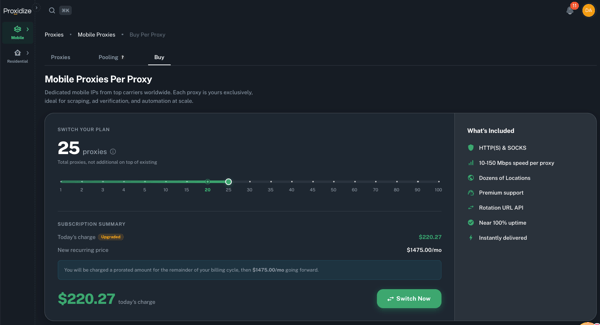
On the Buy tab, you will see your current proxy count and subscription summary.
To change your subscription:
- Move the slider to select the number of proxies you want.
- Review the subscription summary.
- Check Today’s charge and the new recurring monthly price.
- Click Switch Now to confirm the change.
💡Note: The number shown on the slider is your total proxy count, not an additional number of proxies on top of your current plan.
If you upgrade:
If you increase your proxy count, you will be charged a prorated amount for the rest of your current billing cycle.
Before confirming the upgrade, the page will show:
- Today's Charge: The prorated amount due now for the rest of the current billing cycle.
- New recurring price: The amount you will pay per month going forward.
If you downgrade
If you decrease your proxy count, you will not be charged for the downgrade.
After confirming the downgrade, you will lose access to the proxies removed from your subscription.
💡Note: If you downgrade and then return to your previous proxy count within the same billing cycle, you will not be charged again for returning to that previous count.
Mobile or Residential Proxies Per GB
Per GB subscriptions work differently from Per Proxy subscriptions.
When you add more GB, Proxidize creates a separate subscription with its own billing period.
Open the Buy tab
You can add GB from the Buy tab.
To open the Buy tab, use one of the following options:
| Option | Where to go |
|---|---|
| From the Per GB dashboard | Click Buy More or open the Buy tab directly. |
| From Billing | Go to Billing → Subscriptions, open the three-dot menu for the Per GB subscription, then click Buy GB. |
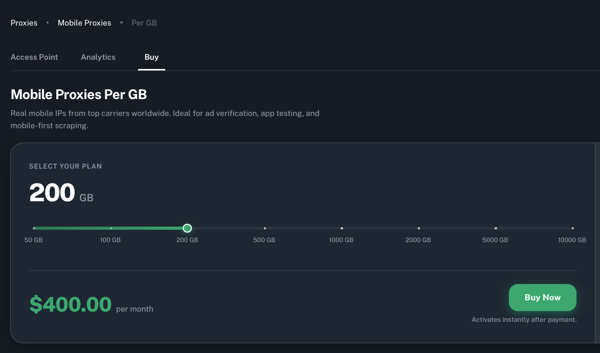
Add more GB
On the Buy tab:
- Move the slider to select the amount of GB you want to add.
- Review the price.
- Click Buy Now.
- Complete the payment.
After the payment is completed, the added GB will become available in your account.
⚠️ Important: Adding GB creates a separate subscription with its own billing period.
Downgrade or stop renewing a Per GB subscription
Per GB subscriptions cannot be downgraded the same way as Per Proxy subscriptions.
Because each Per GB purchase creates a separate subscription, you can stop a specific GB package from renewing by cancelling that subscription.
To stop a Per GB subscription from renewing:
- Go to Billing.
- Click Subscriptions from the left sidebar.
- Find the Per GB subscription package you want to cancel.
- Click the three-dot menu under the Actions column.
- Click Cancel Subscription.
- Confirm the cancellation.
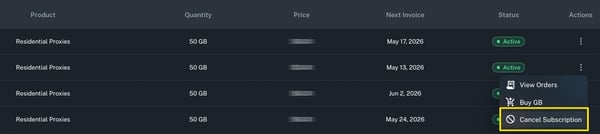
Cancelling a Per GB subscription does not remove the GB already added to your account as the GBs will remain available until its normal expiration date, but that subscription will not renew on the next billing cycle.
💡Note: If you have multiple Per GB subscriptions, make sure you cancel the correct package from the Subscriptions page.
Proxy Builder
For Proxy Builder, you can change your endpoint count, switch between available plans, or change between monthly and annual billing.
Open the Plans page
You can change your Proxy Builder subscription from the Plans page.
| Option | Where to go |
|---|---|
| From Proxy Builder | Go to your Proxy Builder dashboard, then click Plans from the left sidebar. |
| From Billing | Go to Billing → Subscriptions, open the three-dot menu for the Proxy Builder subscription, then click Switch Subscription. |
Change your Proxy Builder subscription
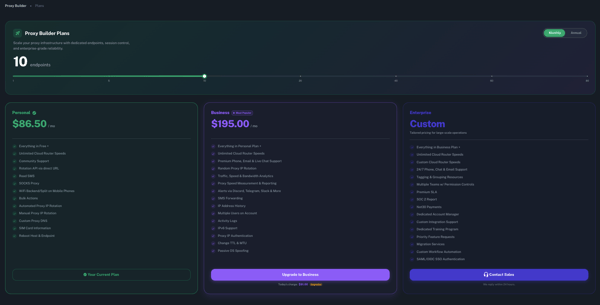
On the Plans page, you can see your current endpoint count and current plan.
To change your subscription:
- Move the slider to select the endpoint count you want.
- Select the plan you want, such as Personal or Business.
- Choose Monthly or Annual, if you want to change your billing cycle.
- Review today’s charge and the recurring price going forward.
- Confirm the change.
If you upgrade
If you increase your endpoint count or upgrade your plan, you will be charged a prorated amount for the rest of your current billing cycle.
For example, if you are on 10 endpoints Personal and upgrade to 10 endpoints Business, you will be charged a prorated amount for the plan upgrade.
If you downgrade
If you decrease your endpoint count, you will not be charged for the downgrade.
After confirming the downgrade, you will lose access to the endpoints removed from your subscription.
💡Note: If you downgrade and then return to your previous endpoint count within the same billing cycle, you will not be charged again for returning to that previous count.
Switching between monthly and annual billing
Changing between Monthly and Annual billing applies immediately.
Before confirming the change, review the subscription summary to see any charge due today and the recurring price going forward.
💡Note: If a plan requires sales assistance, use the available Contact Sales option.
Summary
| Subscription type | Upgrade behavior | Downgrade behavior |
|---|---|---|
| Mobile Proxies Per Proxy | You pay a prorated charge for the rest of the current billing cycle. | You pay nothing, but lose access to the removed proxies. |
| Mobile or Residential Proxies Per GB | Adding GB creates a separate subscription with its own billing period. | Cancel the specific Per GB subscription to stop it from renewing. Existing GB remains available until its normal expiration date. |
| Proxy Builder | You pay a prorated charge for endpoint or plan upgrades. | You pay nothing, but lose access to the removed endpoints. |
Related articles
- How to Manage Your Subscription in the Proxidize App
- How to Cancel a Proxidize Subscription
- How to Pay After a Failed Payment
- How to Download an Invoice
Need Help?
If you have any questions, concerns, or need further clarification, feel free to reach out to us via live chat or email us directly at support@proxidize.com.