
Overview
Proxy logging records request data passing through your endpoints, including timestamps, proxy type, error codes, source IP, destination IP, bytes sent/received, HTTP method, and URL.
Logging is controlled at two levels:
- Host level: configure logging behavior for all endpoints on a host at once (enable/disable, scheduled deletion, clear all logs)
- Endpoint level: manage logs for a specific endpoint individually (view logs, schedule deletion, clear logs)
💡 Note: If proxy logging is disabled at the host level, the "View Proxy Logs" option will be greyed out for all endpoints on that host.
Host-Level Log Settings
These settings are found in the Host Settings tab of your Cloud Dashboard.
Enable / Disable Proxy Logging
By default, proxy logging is enabled. You can toggle it off if you want to minimize data storage or prevent any request data from being recorded on that host.
Keep in mind that disabling logging means no historical data will be available for troubleshooting. If an issue occurs while logging is off, there will be nothing to inspect after the fact.
To change the status, click the Change button next to Proxy Logging.

Scheduled Logs Deletion
This setting lets you automatically delete logs across all endpoints on a host at a set interval, so your server doesn't accumulate unnecessary data over time.
You can set the interval in days, weeks, or months. Once set, logs will be deleted automatically at each interval. You can also terminate an existing schedule at any time using the Terminate Schedule button.
To configure it, click Change next to Scheduled Logs Deletion in Host Settings.

Clear All Proxy Logs
This permanently deletes all proxy logs stored on the selected host in one action — across every endpoint. This is useful for freeing up server space or removing sensitive data quickly.
⚠️ This action is irreversible. Once cleared, logs cannot be recovered. Back up anything important before proceeding.
To use it, click Clear next to Clear All Proxy Logs in Host Settings.

Endpoint-Level Log Management
Per-endpoint log actions are accessible from the Endpoints tab. Select any endpoint, then open the Log Actions dropdown.
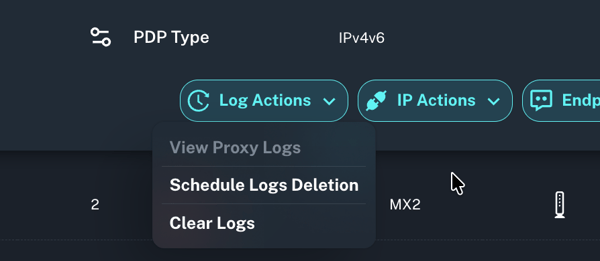
View Proxy Logs
Opens the proxy log viewer for that specific endpoint, showing a detailed table of all recorded requests with the following columns:
| Column | Description |
|---|---|
| Timestamp | When the request was made |
| Proxy Type | HTTP, HTTPS, SOCKS5, etc. |
| Error Code | Response or error status |
| Source IP | IP initiating the request |
| Destination IP | IP being accessed |
| Bytes Sent / Received | Data volume |
| Method | HTTP method (GET, POST, etc.) |
| URL | Full request URL |
💡 Note: This option is greyed out if proxy logging is disabled in the host's settings.
Schedule Logs Deletion (Per Endpoint)
Works the same way as the host-level scheduled deletion, but applies only to the selected endpoint. Set an interval in days, weeks, or months, and logs will be automatically cleared at each cycle.
You can also terminate an active schedule without setting a new one.
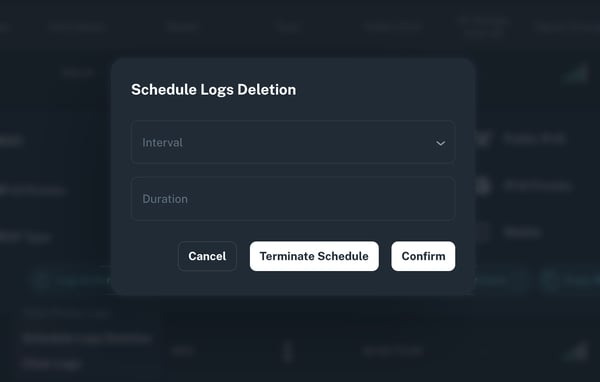
Clear Logs (Per Endpoint)
Permanently deletes all logs for the selected endpoint only. Use this when you want to clear a specific endpoint without affecting the rest of the host.
⚠️ This action is irreversible. Logs cannot be recovered once cleared.
Activity Logs
Available on: Business plan only
Activity Logs give you a full account-level audit trail of every action performed on your Proxidize dashboard, who did what, on which host, and when. This is designed for accountability, not proxy diagnostics.
Each entry includes:
| Column | Description |
|---|---|
| Action | What was performed (e.g. IP rotation, reboot, remote support session) |
| Host | Which host the action was performed on |
| User Email | The account that triggered the action |
| Time | When the action took place |
You can find Activity Logs in the left sidebar of your Cloud Dashboard.
Filtering & Export
- Filter by email: narrow down actions performed by a specific user
- Filter by host: view all actions on a specific host
- Column visibility: toggle individual columns on or off depending on what you need
- CSV export: export the full log for record-keeping or sharing with your team
Quick Reference
| Action | Scope | Where to Find It |
|---|---|---|
| Enable / Disable Logging | Entire host | Host Settings tab |
| Scheduled Logs Deletion | Entire host | Host Settings tab |
| Clear All Proxy Logs | Entire host | Host Settings tab |
| View Proxy Logs | Single endpoint | Endpoints tab → Log Actions |
| Schedule Logs Deletion | Single endpoint | Endpoints tab → Log Actions |
| Clear Logs | Single endpoint | Endpoints tab → Log Actions |
Need Help?
If you have any questions, concerns, or need further clarification, feel free to reach out to us via live chat or email us directly at support@proxidize.com.