
Proxidize PerGB Proxy Plans
Proxidize’s Per-GB proxy plans are built for flexibility. Unlike traditional fixed per-proxy subscriptions, these plans are ideal for users with varying workloads, short-term campaigns, or data-intensive projects. Instead of paying for a set number of proxies, you get access to our full proxy pool and pay only for the data you use.
Use Cases
-
Ad verification
-
Web scraping
-
Geo-targeted automation
-
Regional SEO testing
-
Multi-account management
Core Features Overview
1. Real-Time Data Tracking
Stay on top of your usage without any guesswork.
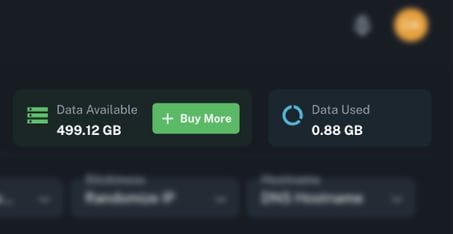
Your dashboard clearly shows how much data you’ve used and what’s still available, so you’re always in control of your plan.
-
Data Available (GB): Your remaining balance
-
Data Used (GB): To see how much data you have consumed
2. Access Points
Need to share your proxy pool across different projects or team members? Access Points make it easy.
You can create unlimited sub-users under your main account, and they’ll all use the same data balance. It’s perfect for organizing tasks across clients, departments, or campaigns.
Each Access Point can be fully customized with its own type, city, and carrier, allowing you to manage each one independently based on your needs.
The best part? No limits on how many you create. You can also delete Access Points at any time.
Authentication Modes:
When creating an Access Point, you'll choose how it authenticates, either via User / Pass or IP Whitelist. Each Access Point can use a different authentication method.
1. User/Pass
Enter an Access Point name (letters, numbers, and underscores only) to create a credential-based Access Point. Proxy credentials including a username and password are generated automatically and can be used in any proxy-compatible browser, script, or tool.
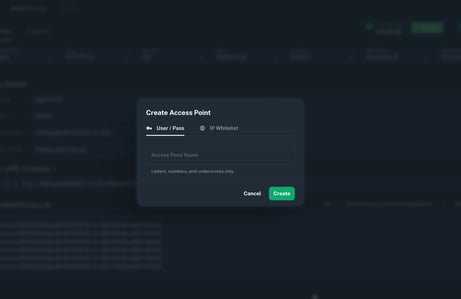
Note: Once an Access Point is deleted, it cannot be re-added using the same name.
2. IP Whitelist (New)
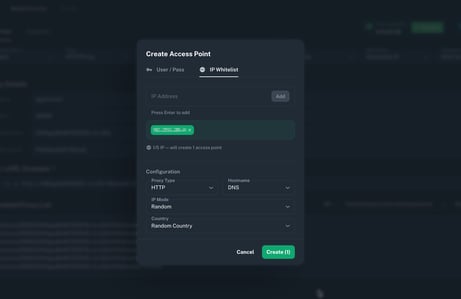
Authenticate using approved public IP addresses instead of proxy credentials. Ideal for server environments or automation tools where managing usernames and passwords is impractical.
When the IP Whitelist tab is selected, you can:
- Add a single IP address manually
- Add multiple IP addresses
- Use the Add My IP helper to auto-detect your current public IP
Each IP added will create one dedicated Access Point. The counter below the IP field (e.g. 1/5 IP — will create 1 access point) shows how many will be created before you confirm.
IP Whitelist Configuration:
IP Whitelist Access Points include a Configuration section where you can set the following options directly at creation:
- Proxy Type: HTTP or SOCKS5
- Hostname: IP or DNS
- IP Mode: Random or Sticky
- Location
These settings apply specifically to the IP Whitelist Access Point and determine how proxy traffic is routed for requests originating from your whitelisted IPs.
Note: IP Whitelisting authenticates based on your source public IP address. If your public IP changes (e.g. due to ISP reassignment, VPN usage, or network changes), access will stop working until the new IP is added to the allowlist. For frequently changing IP environments, User/Pass may be more reliable.
3. Proxy Protocol Selection
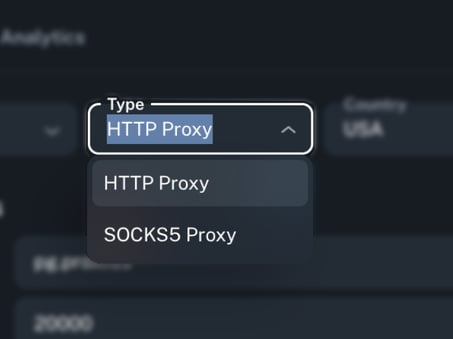
Choose the protocol that best fits your application or tool:
-
HTTP
-
SOCKS5
Your selected protocol will also update the auto-generated connection command.
4. Country & City-Level Targeting
Country Selection
Right now, our Per-GB proxies are available in the United States, but that’s just the beginning.
We’re actively working on expanding to more countries, so you’ll soon have even more options based on your targeting needs.
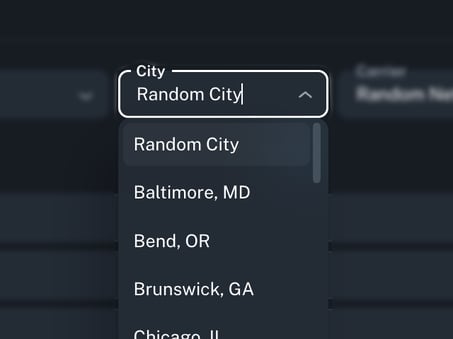
City-Level Targeting
Whether you’re running localized ads or testing site behavior in different cities, Proxidize gives you granular control over where your proxies are coming from.
You can choose from major U.S. cities like:
Tampa, Louisville, Seattle, Dallas, Austin, Miami, Los Angeles, and more.
And if you want to mix things up?
Use the “Random City” option to automatically rotate through locations for broader coverage.
Precise when you need it. Flexible when you don’t.
5. Carrier Selection
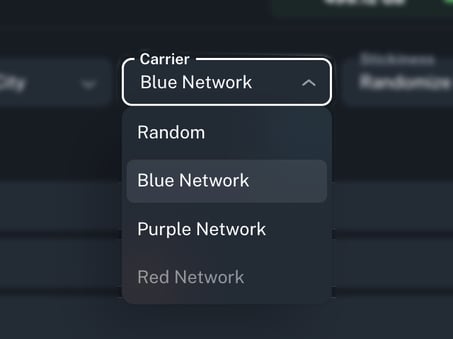
You can adjust this carrier preference during setup or anytime afterward. It’s perfect for optimizing speed, targeting specific regions, or comparing performance across different mobile networks.
Note: When you select a specific carrier, future proxy rotations will remain tied to it. If that carrier goes offline or experiences connectivity issues, the proxy may stop working. In that case, you’ll need to manually switch to an alternative carrier or revert to the Fastest option to restore service.
6. IP Behavior Modes
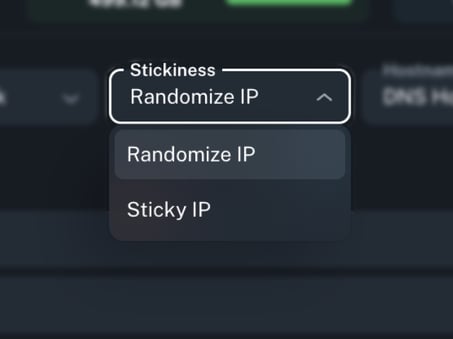
Some tools need stability, others need flexibility. That’s why you can choose:
-
Random IP: Switches IPs for every connection, great for scraping or testing
-
Sticky IP: Keeps the same IP for your session.
Note: While Sticky IP mode is designed to keep the same IP during a session, mobile IPs are naturally dynamic. This means the IP can still change automatically at any time due to the mobile carrier’s network behavior, even if you don’t manually rotate it.
Additionally, when using Sticky IP mode, you can refresh the session ID. Doing so generates new proxy credentials and refreshes the proxy connection, allowing a new IP to be assigned and then maintained consistently for the duration of that session.
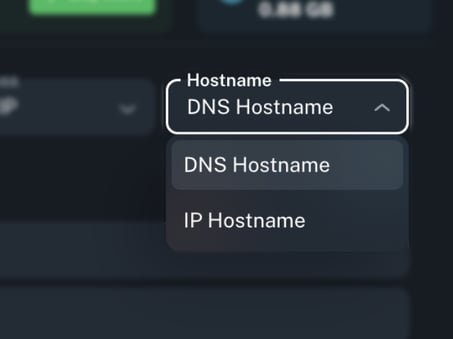
7. Hostname Type Selection
Control how your proxies are resolved:
-
IP Hostname: Direct IP
- DNS Hostname: Dynamic domain
8. Live Proxy Credential Generation
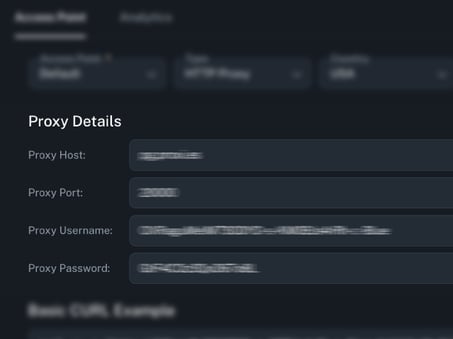
Proxidize automatically generates proxy credentials in real time, allowing you to access your mobile proxies immediately after setup, no manual configuration required.
Each proxy comes with the following connection details:
-
Host (IP or DNS): The IP address or domain name assigned to your proxy.
-
Port: The unique port number corresponding to the specific proxy.
-
Username: A system-generated username used for authentication.
-
Password: Secure, customizable password for enhanced access control.
These credentials can be used directly in your proxy client, browser, or third-party tools that support HTTP(S) or SOCKS5 protocols.
9. Basic CURL Example (Auto-Generated)
To help you test your proxy setup instantly, Proxidize displays a pre-filled CURL command based on your selected protocol (HTTP or SOCKS5). This command includes your proxy host, port, and credentials, making it easy to verify functionality from the command line.
You can:
-
Copy and paste the command into your terminal for quick testing.
-
Switch protocols to auto-generate a cURL snippet that matches your chosen settings.
-
Use the example as a template when integrating proxies into scripts or tools.
This feature is especially useful for troubleshooting or verifying proxy connectivity without needing additional software.

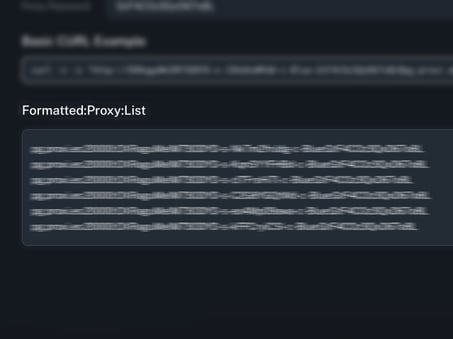
10. Formatted Proxy List Generator
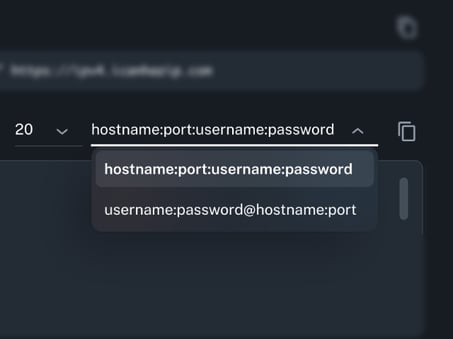
Export your proxies in your preferred format:
-
hostname:port:username:password -
username:password@hostname:port
Choose from batch sizes of 10, 20, 50, or 100 proxies, or generate unlimited lists as needed.
10. Port Mapping
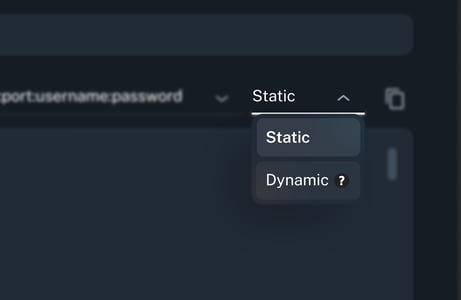
Control how ports are assigned to your proxies using the Port Mapping dropdown in the dashboard toolbar.
Two modes are available:
- Static: Ports are fixed and do not change between sessions.
- Dynamic: Each proxy is assigned a dedicated HTTP and SOCKS port automatically. Ports follow a standardized order, making them easier to scan and validate across your proxy list.
Dynamic Port Ranges:
| Protocol | Range | Order |
|---|---|---|
| HTTP | 18000 → 20000 | Descending |
| SOCKS | 20002 → 22002 | Ascending |
With Dynamic mode, every proxy gets its own unique port for both HTTP and SOCKS, no overlap, no ambiguity.
Tip: Dynamic is recommended for most setups. The predictable port ordering makes it straightforward to cross-reference proxies in bulk exports or scripts.
11. Analytics Tab
The Analytics Tab in the Per-GB plan provides detailed usage insights and real-time metrics for your access points.
Here’s what you can do in the Analytics Tab:
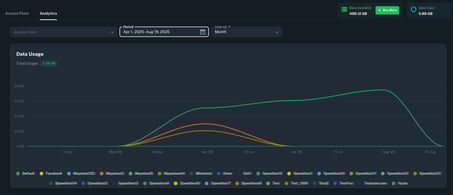
Select Access Points to View Analytics
Choose exactly which access point(s) you want to analyze, giving you precise data for your unique workflows.
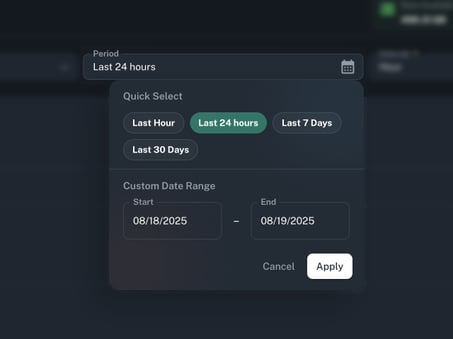
Time-Range Filtering
You can view analytics data for:
-
Last hour
-
Last 24 hours
-
Last 7 days
-
Last 30 days
-
Or create a custom data range by selecting specific dates and saving your changes.
Flexible Interval Selection
Adjust how data is grouped on the X-axis:
-
Monthly
-
Weekly
-
Daily
-
Hourly
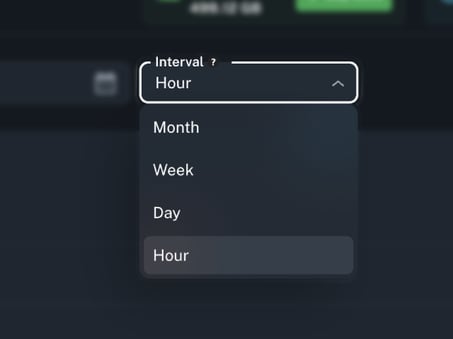
The X-axis will automatically update to reflect your chosen interval, giving you an accurate view of trends over time.
Real-Time Metrics
The analytics dashboard displays real-time and historical usage data:
-
Total Usage: Total GBs consumed for the selected Access points (including previous renewals).
Note: The Total Usage metrics differ from the data usage shown at the top-right of the dashboard (which only shows current month data of the entire Per-GB plan). The analytics view shows your full usage history on the selected Access point.
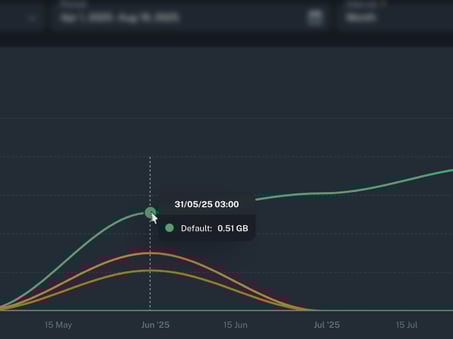
Interactive Graph Tooltips
When hovering over any data point on the graph, you’ll see:
-
Access point name
-
Timestamp (formatted to the selected interval)
-
Usage in GB
Available Data Plans
Whether you're just getting started or managing large-scale operations, Proxidize offers a range of data plans designed to scale with you. Choose the plan that matches your usage, and upgrade anytime as your needs grow.
Available plans include:
-
100GB
-
200GB
-
500GB
-
1000GB
-
2000GB
-
5000GB
-
10,000GB
-
20,000GB