
What Is the Proxidize Proxy Extension?
The Proxidize Proxy Extension is a browser extension that makes it easier to connect to proxies without manually changing your browser or operating system proxy settings.
It works similarly to proxy management extensions such as FoxyProxy, but is designed to be more straightforward for Proxidize users.
With the extension, you can:
- Add one proxy manually.
- Add multiple proxies at once by pasting them in bulk.
- Import proxies from a CSV file.
- Test proxies before connecting.
- Switch between proxies with one click.
- Search and filter saved proxies.
- View useful proxy details such as country, type, endpoint, authentication, and egress IP.
Install the Extension
Install the Proxidize Proxy Extension for your browser:


Browser and Proxy Type Support
Proxy type support depends on the browser you are using.
| Browser | HTTP With Username/Password | SOCKS With Username/Password | SOCKS With IP Whitelisting |
|---|---|---|---|
| Firefox | Supported | Supported | Supported |
| Chrome | Supported | Not supported | Supported |
⚠️Important: On Chrome, SOCKS proxies are supported only when using IP whitelisting. SOCKS proxies with username and password authentication are not supported through the Chrome extension flow.
If you need to use SOCKS proxies on Chrome, configure IP whitelisting from the relevant subscription article:
Open the Extension
After installing the extension:
- Click the Proxidize icon in your browser toolbar.
- The extension window will open.
Add Proxies
Click Add proxies to open the import window.
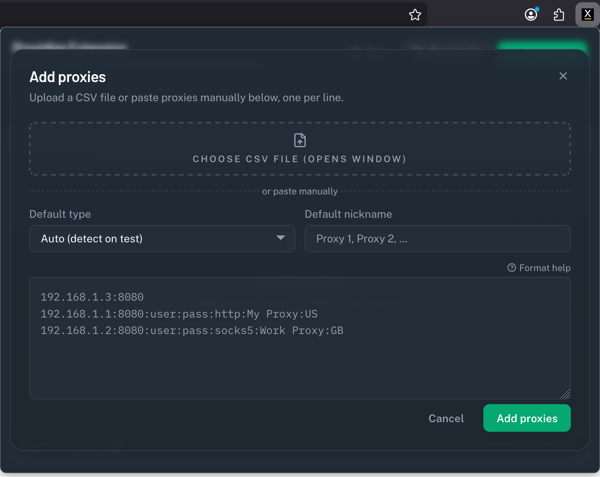
You can add proxies in three ways:
- Paste one proxy manually.
- Paste multiple proxies in bulk.
- Upload a CSV file.
Test Proxies Before Connecting
After adding proxies, you can test them before connecting.
To test a proxy:
- Select the proxy from the list.
- Click Test or the test icon.
- Wait for the test to complete.
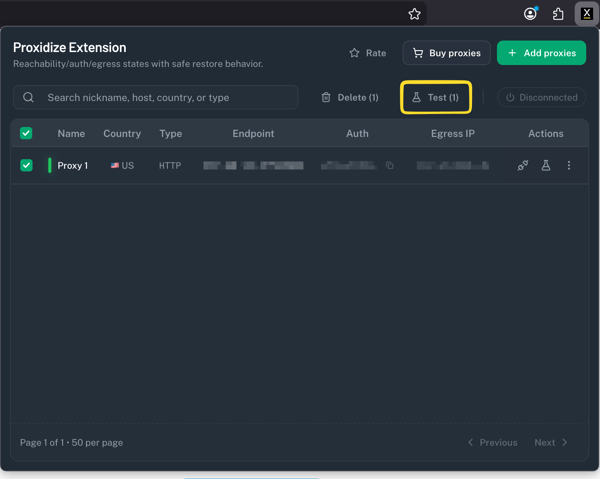
Testing helps confirm whether the proxy is reachable and whether the authentication works.
The extension can also detect useful information such as:
- Proxy country.
- Egress IP.
- Proxy reachability.
- Authentication status.
Connect to a Proxy
To connect:
- Find the proxy you want to use.
- Click the connect action.
- Confirm the status changes to Connected.
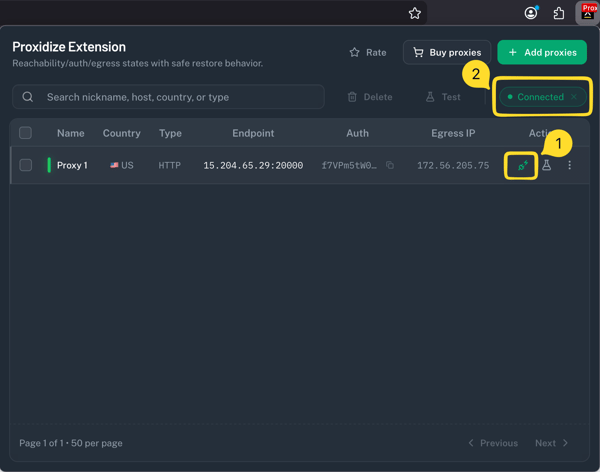
Once connected, browser traffic will route through the selected proxy.
To disconnect, click the connected status or disconnect action.
Search and Filter Proxies
Use the search bar to find proxies by:
- Nickname.
- Host.
- Country.
- Type.
This is useful when you have many proxies saved in the extension.
Manage Saved Proxies
From the proxy table, you can review:
- Name.
- Country.
- Type.
- Endpoint.
- Authentication.
- Egress IP.
- Available actions.
You can also delete proxies you no longer need.
When to Use the Extension
Use the Proxidize Proxy Extension when you want to:
- Quickly switch between multiple proxies.
- Avoid manually editing browser or operating system proxy settings.
- Test proxies before using them.
- Manage a large list of proxies in one place.
- Import proxies in bulk instead of adding them one by one.
Troubleshooting
| Issue | What to Check |
|---|---|
| HTTP proxy does not connect | Confirm the host, port, username, and password are correct. |
| SOCKS proxy does not work on Chrome | Chrome supports SOCKS only with IP whitelisting. Use Firefox for SOCKS username/password authentication. |
| SOCKS proxy with username/password is needed | Use Firefox, which supports SOCKS proxies with username/password. |
| Proxy test fails | Confirm the proxy is active, credentials are correct, and your subscription is active. |
| Egress IP does not show | Test the proxy again and confirm the proxy is reachable. |
| Imported proxies look incorrect | Check the proxy format or CSV formatting before importing again. |
| Website still shows your original IP | Confirm the extension status shows Connected and retest the proxy. |
Need Help?
If you have any questions, concerns, or need further clarification, feel free to reach out to us via live chat or email us directly at support@proxidize.com.