
The Proxies tab gives you a centralized view of all your active proxy endpoints, allowing you to quickly copy, filter, and export proxy credentials. It's found under Proxies in the left sidebar of your Cloud Dashboard.
Use this tab when you need to:
- Copy proxies into external tools (browsers, bots, scrapers)
- Verify your proxy details (IP, port, protocol)
- Export your proxy list for bulk usage or integrations
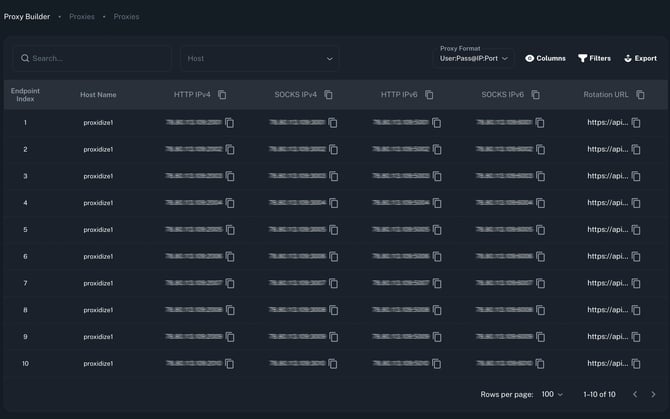
The Proxies Table
Each row in the table represents one endpoint and displays all the proxy formats available for that endpoint.
| Column | Description |
|---|---|
| Endpoint Index | The endpoint's assigned index number |
| Host Name | The host this endpoint is connected to |
| HTTP IPv4 | The HTTP proxy address on IPv4 |
| SOCKS IPv4 | The SOCKS5 proxy address on IPv4 |
| HTTP IPv6 | The HTTP proxy address on IPv6 |
| SOCKS IPv6 | The SOCKS5 proxy address on IPv6 |
| Rotation URL | The API URL used to rotate this endpoint's IP |
You can search for a specific endpoint using the search bar, or filter by host using the host dropdown.
Proxy Format
Use the Proxy Format dropdown at the top right of the table to switch how proxy credentials are displayed.
All formats contain the same proxy information (IP, Port, Username, and Password). The only difference is how this information is structured.
Some tools require a specific format. If your proxy does not work, try switching formats.
Two formats are supported:
| Format | Example |
|---|---|
User:Pass@IP:Port |
user:pass@75.90.13.109:2001 |
IP:Port:User:Pass |
75.90.13.109:2001:user:pass |
Switching formats updates all entries in the table instantly, so you can copy proxies in whichever format your tool or software requires.
Port Assignments
Proxy ports are assigned based on whether the Cloud Router is enabled or disabled on your host.
If the Cloud Router is disabled, ports are assigned sequentially starting from a base port of 2000. The first endpoint's proxies will be on the following ports:
| Proxy Type | Port |
|---|---|
| HTTP IPv4 | 2001 |
| SOCKS IPv4 | 3001 |
| HTTP IPv6 | 5001 |
| SOCKS IPv6 | 6001 |
Each subsequent endpoint increments by one (e.g. endpoint 2 will be on 2002, 3002, 5002, 6002).
If the Cloud Router is enabled, ports are assigned by the router and may differ from the defaults above.
Copying & Exporting Proxies
There are several ways to copy your proxy list depending on how many you need:
- Copy a single proxy: click the copy icon next to any individual proxy address
- Copy an entire column: click the copy icon in the column header to copy all proxies of that type (e.g. all HTTP IPv4 proxies) at once
- Export the full table: click the Export button to download the entire proxy list as a CSV file
You can also use the Columns button to show or hide specific columns depending on what you need.
After copying a proxy, you can paste it directly into your tool or software that supports proxy connections.
Make sure to:
- Select the correct proxy format before copying
- Paste the proxy into the appropriate proxy field in your tool
If the proxy does not work, try switching to a different format and copy it again.
Troubleshooting
If your proxy is not working as expected, check the following:
- Try a different format
Some tools require a specific proxy format. Switch formats using the Proxy Format dropdown and try again. - Check your SIM cards
Ensure your SIM cards have sufficient balance, active data, and good signal reception. Proxies rely directly on SIM connectivity. - Verify the protocol (HTTP vs SOCKS)
Make sure you are using the correct proxy type supported by your tool. - Check the port
Ensure the port matches the proxy type (e.g. HTTP vs SOCKS). - Ensure your endpoint is active
Only active endpoints will work. If no proxies are shown, verify your setup in the Proxy Builder. - Test with another tool or environment
This helps determine whether the issue is tool-specific.
If the issue persists, please contact support with your endpoint details and a screenshot of your setup.
Need Help?
If you have any questions, concerns, or need further clarification, feel free to reach out to us via live chat or email us directly at support@proxidize.com.