
| Feature | Free | Personal | Business |
|---|---|---|---|
| Read SMS | ❌ | ✅ | ✅ |
| Send SMS | ❌ | ❌ | ✅ |
| Delete SMS | ❌ | ❌ | ✅ |
| SMS Forwarding | ❌ | ❌ | ✅ |
Overview
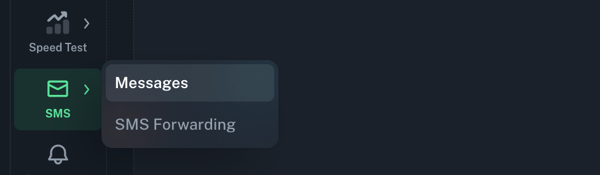
The SMS tab is located in the left sidebar of your Cloud Dashboard, under the Speedtest section. Expanding it gives you two sub-sections:
- Messages: read, send, and delete SMS messages from your endpoints
- SMS Forwarding: create webhook-based forwarding rules to route incoming SMS to external systems
You can also reach the SMS tab directly from the Endpoints page by selecting any endpoint and clicking the SMS Actions button, which takes you straight to the Messages screen for that endpoint.
⚠️ Android Agent users: SMS functionality requires a special APK to work. Please contact our support team to get it set up.
Messages
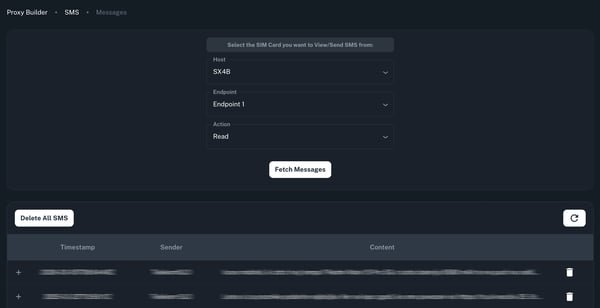
All message actions are performed from SMS → Messages. Select your host and endpoint from the dropdowns, then choose an action.
Read SMS
Select Read from the Action dropdown and click Fetch Messages to load all received messages for that endpoint. Each message is displayed with:
- Timestamp: when the message was received
- Sender: the number it was sent from
- Content: the message body
Send SMS
Available on: Business plan only
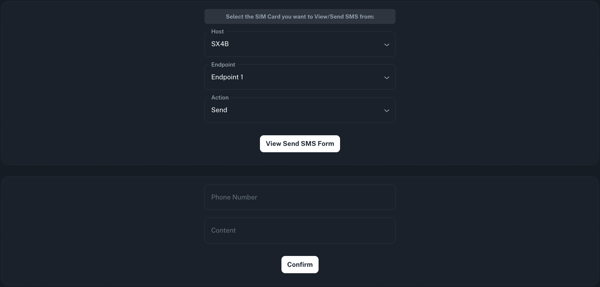
Select Send from the Action dropdown and click View Send SMS Form. Enter the destination phone number and message content, then click Confirm.
Delete SMS
Available on: Business plan only
There are two ways to delete messages:
- Delete a specific message: click the bin icon on the right side of any message row
- Delete all messages: click the Delete All SMS button above the message list
⚠️ Deleted messages cannot be recovered.
SMS Forwarding
Available on: Business plan only
SMS Forwarding lets you create rules that automatically send incoming SMS messages as API calls to an external system or webhook URL, useful for integrating with third-party platforms or automating workflows.
Enable SMS Forwarding
Before creating any rules, you need to enable SMS Forwarding for the host first. Go to Host Settings → Host tab, find the SMS Forwarding toggle, and enable it.

Managing Forwarding Rules
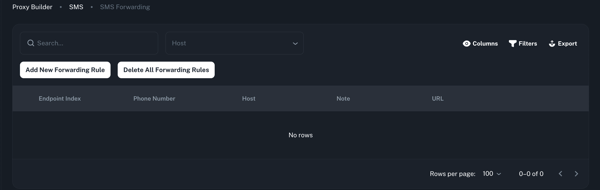
Once enabled, go to SMS → SMS Forwarding to manage your rules. Each rule is tied to a specific endpoint and phone number, with a destination webhook URL.
From this page you can:
- Add a new forwarding rule
- Edit an existing rule
- Enable / Disable individual rules
- Delete rules individually or all at once via Delete All Forwarding Rules
Advanced: Accessing SMS Without the Dashboard
For users who prefer direct access, SMS messages can also be managed outside of the Cloud Dashboard:
- Linux Agent users: access SMS directly through the modem's web interface. Learn how to access your modem's web interface →
- Android Agent users: SMS can be read and managed directly from the Android device itself
Need Help?
If you have any questions, concerns, or need further clarification, feel free to reach out to us via live chat or email us directly at support@proxidize.com.