
What Is an IP Address?
- Public IP address: The address your network uses on the internet.
- Private IP address: The address used by devices inside your local network.
Public vs Private IP Addresses
| Type | What it Means | Example | Where Is Is Used |
| Public IP |
The internet-facing IP address assigned to your router or network by your ISP.
|
87.73.14.5
|
Remote access, WAN access, DDNS, proxies
|
| Private IP |
The local IP address assigned to a device inside your network.
|
192.168.1.50 |
Local access, router settings, DHCP reservation, port forwarding rules.
|
Common private IP ranges include:
- `192.168.0.0` to `192.168.255.255`
- `10.0.0.0` to `10.255.255.255`
- `172.16.0.0` to `172.31.255.255`
- Your router may have the private IP `192.168.1.1`.
- Your Proxidize server may have the private IP `192.168.1.25`.
- Your public/WAN IP may be `87.73.14.5`.
What Is a Default Gateway?
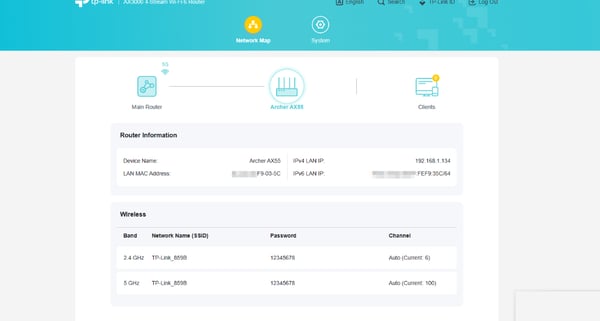
Before You Start
- Connect your PC, Mac, or Proxidize server to the same network as the router.
- Use Wi-Fi or Ethernet. Either one works as long as it connects through the same router.
- If you are connected to a VPN, disconnect it before checking your local IP or default gateway.
- If the network has more than one router, make sure you are connected to the router used by the Proxidize server.
1. Find Your IP Address and Default Gateway on Windows
- Open the Windows Search menu.
- Search for Command Prompt and launch it.

3. Run the following command:
ipconfigFor example, look under Wireless LAN adapter Wi-Fi if you are connected through Wi-Fi, or Ethernet adapter Ethernet if you are using a cable:
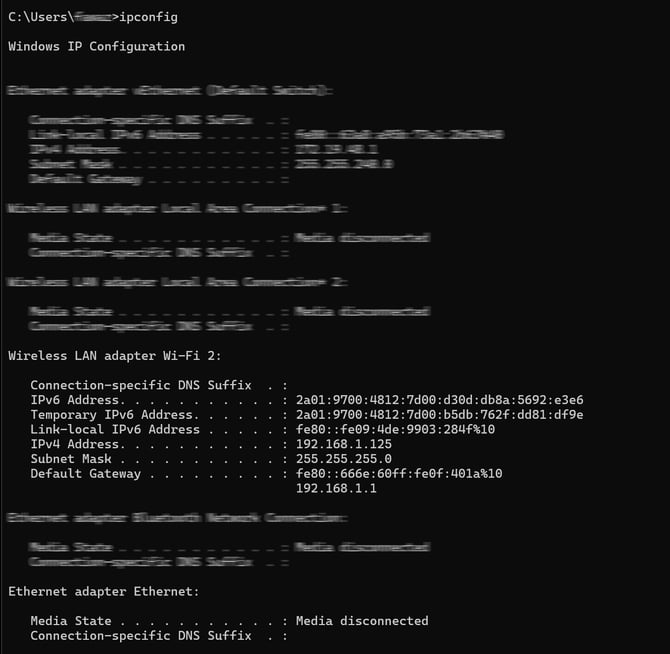
5. Look for these fields:
-
- IPv4 Address: This is your PC's private IP address.
- Default Gateway: This is usually your router's IP address.
Example:
IPv4 Address. . . . . . . . . . . : 192.168.1.125
Default Gateway . . . . . . . . . : 192.168.1.1
- The PC's private IP address is
192.168.1.125. - The router/default gateway IP address is
192.168.1.1.
2. Find Your IP Address and Default Gateway on macOS
- Open System Settings.
- Go to Network.
- Select the connection you are using, such as Wi-Fi or Ethernet.
-
Open Details or Advanced, depending on your macOS version.
-
Go to the TCP/IP tab.
-
Look for these fields:
- IP Address: This is your Mac's private IP address.
- Router: This is usually your router's IP address.
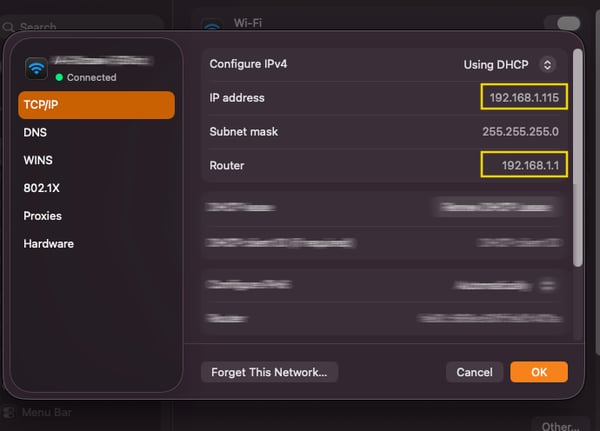
3. Find Your IP Address and Default Gateway on Linux
- Open a Terminal.
- Run this Command.
ip route - Look for the line that starts with
default.
Example:
default via 192.168.1.1 dev eth0
192.168.1.0/24 dev eth0 proto kernel scope link src 192.168.1.25
In this example:
- The default gateway/router IP address is
192.168.1.1. - The Linux device's private IP address is
192.168.1.25.
Find Your Public IP Address
The easiest way to find your public IP address is to open a browser and search:
what is my IP
The result shown by the search engine is usually your current public IP address.
You can also use a public IP lookup website such as eth0.me
⚠️ Important: If you are connected through a VPN, proxy, or corporate network, the public IP shown may belong to that service instead of your router.
Open Your Router Settings Page
After you find your default gateway, enter it in your browser address bar.
Example:
http://192.168.1.1
If the router login page opens, you found the correct address.
💡Note: You may need the router username and password to continue. These credentials are usually set by the network owner, printed on the router label, or provided by the ISP.
Why This Matters for Proxidize
You may need these IP addresses when configuring:
- Local IP reservation: Reserve your Proxidize server's private IP so it does not change.
- Port forwarding: Forward traffic from your public IP to your Proxidize server's private IP.
- Dynamic DNS: Keep remote access working when your public/WAN IP changes.
- Router access: Open the router settings page to manage DHCP, firewall, or forwarding rules.
Troubleshooting
| Issue | What to Check |
|---|---|
| The router page does not open | Make sure your device is connected to the same network as the router. |
| The page times out | Try adding http:// before the gateway IP address. |
| You see multiple IP addresses | Check the adapter you are actively using, such as Wi-Fi or Ethernet. |
| You see multiple gateways | Disconnect VPNs and check the active network adapter. |
| The router asks for a password | Use the router admin credentials, not your Proxidize dashboard password. |
| The public IP is different from the router WAN IP | Your ISP may be using CGNAT, or you may be behind another router. |
Related Articles
Need Help?
If you have any questions, concerns, or need further clarification, feel free to reach out to us via live chat or email us directly at support@proxidize.com.