
Host Settings is found below Activity Logs in the left sidebar of your Cloud Dashboard. Use the host selector at the top to switch between hosts. The Proxy tab is the first of three tabs, see also Proxy Rotation Tab and Host Tab.
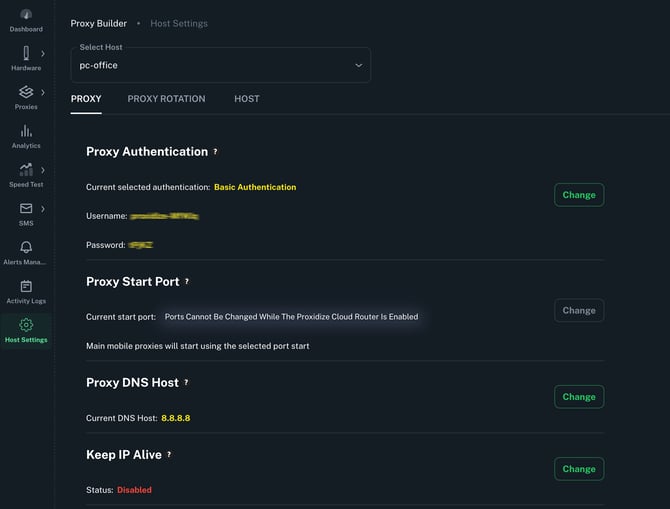
Tip: Most settings have a tooltip, hover over the (?) icon next to any setting to get a quick description without leaving the page.
The settings available to you depend on your host type. Linux Agent hosts have significantly more controls than Android Agent hosts, covering everything from port configuration and DNS to index locking and OS spoofing.
Android Agent hosts have a smaller, focused set of options.
The compatibility table below shows exactly what's available on each, and full details for every setting are covered further down the page.
| Setting | Linux Agent | Android Agent |
|---|---|---|
| Proxy Authentication | ✅ | ✅ |
| Proxy Start Port | ✅ | ❌ |
| Proxy DNS Host | ✅ | ✅ |
| Keep IP Alive | ✅ | ❌ |
| Index Locking Type & Reset Proxy Indexing | ✅ | ❌ |
| Proxy Logging, Scheduled Logs Deletion & Clear All Proxy Logs | ✅ | ✅ |
| Refresh Proxies | ✅ | ❌ |
| Change IP Duration | ❌ | ✅ |
Proxy Authentication
Available on: All plans (Free, Personal, Business)
Controls how clients authenticate when connecting to your proxies. Available methods depend on your host type:
Android Agent: Basic Authentication only
| Method | Plans | Description |
|---|---|---|
| Username & Password | All plans | A username and password are pre-generated when you activate your subscription |
| Custom Username & Password | Personal, Business | Set your own username and password for your generated proxies |
Linux Agent: Basic Authentication and IP Authentication
| Method | Plans | Description |
|---|---|---|
| Username & Password | All plans | A username and password are pre-generated when you activate your subscription |
| Custom Username & Password | Personal, Business | Set your own username and password |
| IP Authentication | Business only | Whitelist specific IP addresses that are allowed to access your proxies. Not functional when the Cloud Router is enabled |
Proxy Start Port:
Available on: All plans - Linux Agent only
Sets the port number your proxies start from. The default is 2000, meaning your first endpoint's proxies will be on ports 2001 (HTTP IPv4), 3001 (SOCKS IPv4), 5001 (HTTP IPv6), and 6001 (SOCKS IPv6).
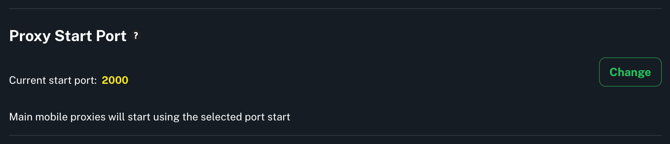
Note: This setting only takes effect when the Cloud Router is disabled.
Proxy DNS Host:
Available on: Personal and Business plans
Sets the DNS server your proxies use to resolve domain names. By default this is set to Google's public DNS (8.8.8.8), which works reliably across most carriers and networks.

You can change this to any DNS server, for example, if you run a local DNS server or prefer an alternative public DNS like Cloudflare (1.1.1.1).
Keep IP Alive
Available on: Business plan Linux Agent only
Enables Sticky IPs which keeps your proxy IPs from changing by maintaining a constant heartbeat signal to the carrier, preventing the connection from being seen as idle.
Due to global IPv4 shortage, carriers routinely reclaim IP addresses from idle devices and reassign them. Keep IP Alive counters this by keeping the connection active, so your endpoints hold onto the same IP for as long as possible.
Note: This does not guarantee a permanently fixed IP. Some carriers enforce IP reassignment on a fixed schedule regardless of activity. If you notice frequent unexpected IP changes, enabling this feature is the first thing to try.
Enable it by clicking Change next to Keep IP Alive and toggling it on.

Index Locking Type & Reset Proxy Indexing
Available on: All plans Linux Agent only
Controls how endpoint index numbers are assigned. Two modes are available:
| Mode | Plans | Behavior |
|---|---|---|
| Insertion Order Lock | All plans | Endpoints are indexed in the order they connect. The earliest connected endpoint gets the lowest available index |
| Physical Slot Lock | Business only | Endpoints are indexed by their physical USB port number on the hub. Requires Proxidize official hardware |

Reset Proxy Indexing: re-indexes all proxies back to 1
Useful after removing endpoints or when index numbers have become non-sequential. Only applies when using Insertion Order Lock.

Proxy Logging, Scheduled Logs Deletion & Clear All Proxy Logs
Proxy Logging & Scheduled Logs Deletion, Available on: All plans - Linux Agent only.
-
Proxy Logging enables or disables log recording for all endpoints on this host. When disabled, no request data is recorded.
-
Scheduled Logs Deletion automatically deletes proxy logs across all endpoints on this host at a set interval, days, weeks, or months.
-
Clear All Proxy Logs permanently deletes all proxy logs stored on the selected host across every endpoint.
⚠️ Clear All Proxy Logs is irreversible. Logs cannot be recovered once cleared.
→ See the full Logs & Logging article for more details.
Refresh Proxies
Available on: All plans - Linux Agent only
Forces an immediate refresh of all proxy connections on this host. Useful after making configuration changes that require proxies to restart, or when experiencing issues with USB modems. This should be the first thing you try before contacting support.

Change IP Duration
Available on: All plans — Android Agent only
Controls how long the Android device stays in airplane mode during an IP rotation before toggling back off. When a rotation is triggered, the device enables airplane mode to drop the carrier connection, waits for the configured duration, then disables airplane mode to reconnect and obtain a new IP.
Need Help?
If you have any questions, concerns, or need further clarification, feel free to reach out to us via live chat or email us directly at support@proxidize.com.