
You can manage your saved cards and billing information from the Payment Methods page in the Proxidize app.
From this page, you can:
- Add a new card
- Remove a saved card
- View your default card
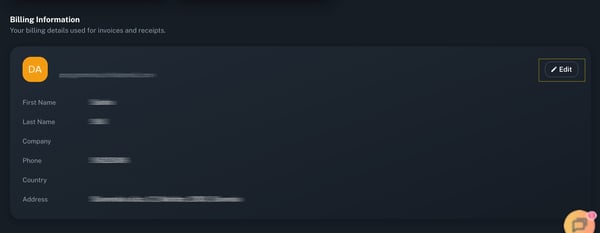
- Edit your billing information used for invoices and receipts
Note: The Payment Methods page currently supports card payments only. If you want to pay using crypto, you can select or change the payment method during checkout.
Before you start
Access the billing section by Logging into your Proxidize account at:
Then click your profile at the top right corner and choose Billing.
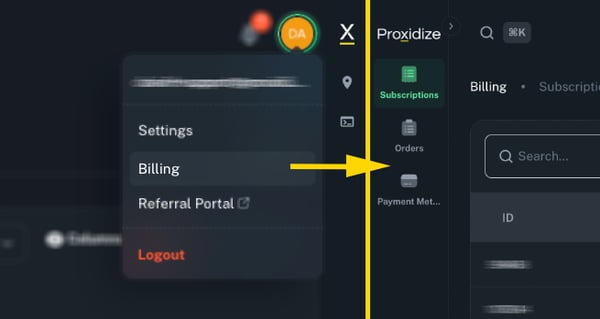
Open the Payment Methods page
- From the left sidebar, click Payment Methods.
- You will see your saved cards and billing information.
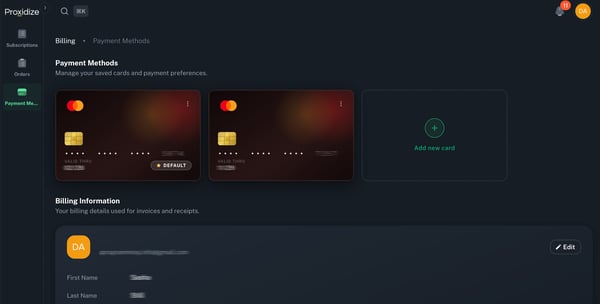
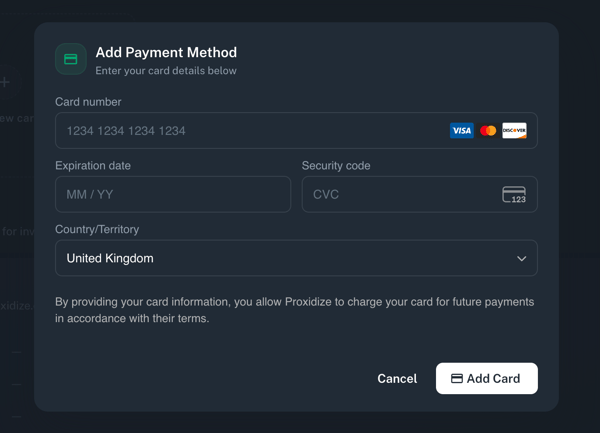
Add a new card
- On the Payment Methods page, click Add new card.
- Enter your card details.
- Select your country or territory.
- Click Add Card.
Once the card is added, it will appear in your saved payment methods.
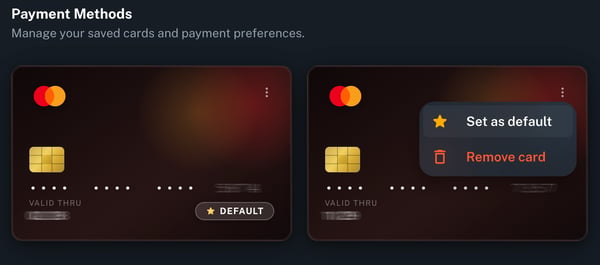
Remove a saved card or set another card as default
- Find the card you want to remove or set as default.
- Click the three-dot menu on the card.
- Click Remove card or Set as Default depending on the intended action.
Note: Removing a card will stop it from being used as a saved payment method for future card payments.
Edit your billing information
Your billing information is used for invoices and receipts.
To update it:
- Scroll to the Billing Information section.
- Click Edit.
- Update your billing details.
- Save your changes.
Paying with crypto
Crypto payments are not managed from the Payment Methods page.
To pay using crypto, choose or change the payment method during checkout when completing a purchase or payment.
Note: Saved payment methods in this section are for card payments only.
After changing your payment method
If you changed your payment method because of a failed or pending payment, return to the payment and try again.
You can do this from:
- Subscriptions → Renew Subscription
- Orders → Pay
Related article:
- How to Pay After a Failed Payment
- How to Manage Your Subscription in the Proxidize App
- How to Subscribe to a Proxidize Plan
Need Help?
If you have any questions, concerns, or need further clarification, feel free to reach out to us via live chat or email us directly at support@proxidize.com.