
You can purchase Proxidize products from the Proxidize website or directly from the Proxidize app.
New customers usually start from the website, while existing customers can purchase directly from their account inside the app.
Before you start
Before purchasing, you need a Proxidize account.
You can create an account in one of two ways:
| Option | What to do |
|---|---|
| From the website | Click Sign up for free on the Proxidize website. |
| From the app | Go to https://app.proxidize.com and sign up for a free account. |
After your account is created, you can complete your purchase from either the website or the app.
Option 1: Buy from the Proxidize website
Use this method if you are purchasing from a Proxidize landing page or pricing page.
- Go to the Proxidize website.
- Choose the product or plan you want to purchase.
- Select the package, quantity, or plan that fits your needs.
- Continue to checkout.
- Review your order summary.
- Add a coupon code if you have one.
- Choose your payment method.
- Complete the purchase.
Once checkout is complete, your proxies will appear in your Proxidize account immediately at app.proxidize.com
Option 2: Buy from the Proxidize app
Use this method if you are already logged in to your Proxidize account.
- Log in to https://app.proxidize.com.
- Go to the product you want to purchase.
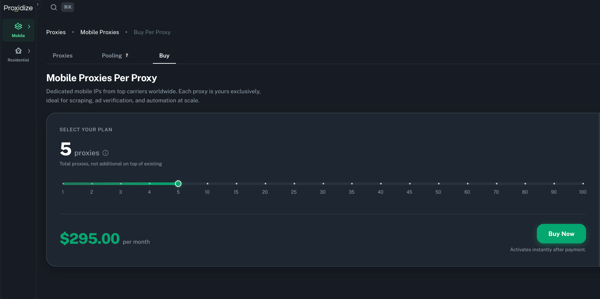
- Open the Buy tab or the relevant plan page.
- Select your package, quantity, GB amount, or plan.
- Click Buy Now or the available purchase button.
- Review your order in checkout.
- Add a coupon code if you have one.
- Choose your payment method.
- Complete the purchase.
Once checkout is complete, your proxies will appear in your account immediately.
Supported payment methods
At checkout, you can pay using:
| Payment method | Supported |
|---|---|
| Credit or debit card | Yes |
| Cryptocurrency | Yes |
Note: PayPal, Google Pay, and other payment processors are not currently supported.
Add a coupon code
If you have a coupon code, you can apply it during checkout.
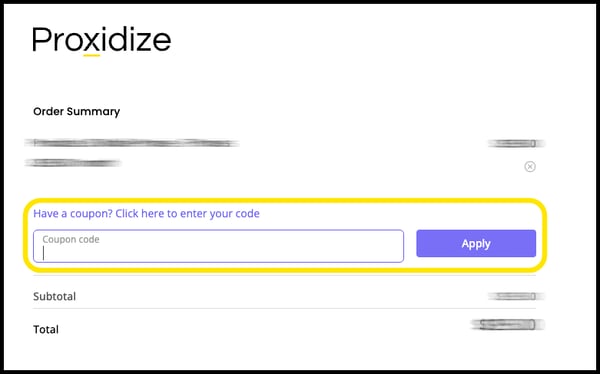
- On the checkout page, click Have a coupon? Click here to enter your code.
- Enter your coupon code.
- Apply the coupon.
- Review the updated order total before completing payment.
What happens after purchase?
After your purchase is completed:
- Your proxies will appear in your account immediately.
- Your subscription will appear under Billing → Subscriptions.
- Your order will appear under Billing → Orders.
- You can download invoices from the Orders page.
Related articles
- How to Manage Your Subscription in the Proxidize App
- How to Upgrade, Downgrade, or Change Your Subscription
- How to Download an Invoice
- How to Pay After a Failed Payment
- How to Change Your Payment Method
Need Help?
If you have any questions, concerns, or need further clarification, feel free to reach out to us via live chat or email us directly at support@proxidize.com.