
What Is Dual-Stack IPv4/IPv6?
Dual-stack means the modem can use both IPv4 and IPv6 at the same time.
When dual-stack is enabled, the modem attempts to obtain:
- An IPv4 address.
- An IPv6 address.
This can help with compatibility across networks and services that use either IP version.
⚠️ Important: Carrier Limitation
Enabling dual-stack on the modem does not guarantee that the SIM will receive an IPv6 address.
Your mobile carrier must support IPv6 on the SIM plan and network you are using. If the carrier does not provide IPv6, the modem may still only receive IPv4 even when IPv4/IPv6 mode is selected.
Modem Compatibility Note
This is a general guide for supported USB modems, with specific steps for Proxidize MX2 modems.
Other supported modems may have similar IPv4/IPv6 settings, but the WebUI address, menu names, and available options may differ depending on the manufacturer and firmware.
Common modem WebUI addresses include:
| Modem Model | Common WebUI Address |
|---|---|
| MX2 modem | http://192.168.1.1 |
| Huawei modem | http://192.168.8.1 |
| ZTE modem | http://192.168.0.1 |
For supported modem models, see Linux Agent: System Requirements & Supported Modems.
Before You Start
You will need:
- Access to the MX2 modem's WebUI.
- The proxy for the specific modem you want to configure.
- The Proxidize Proxy Extension for Chrome or Firefox.
- The modem WebUI password, if required.
If you are not sure how to open a modem WebUI through its proxy, see How Can I Access My MX2 Modem's Web Interface?. The guide is MX2-focused, but the same proxy-based access concept applies to other modem models.
General Process
The exact menu names may differ by modem, but the general process is:
- Connect your browser to the proxy of the modem you want to configure.
- Open that modem's WebUI address.
- Log in if required.
- Disconnect the modem from the mobile network before changing IP mode.
- Find the network, profile, APN, or connection settings.
- Change the IP mode to IPv4, IPv6, or IPv4/IPv6.
- Save the setting.
- Reconnect the modem.
- Confirm whether the modem received IPv4, IPv6, or both.
MX2 Example: Access the Modem WebUI
-
Connect your browser to the proxy of the MX2 modem you want to configure.
-
Open the MX2 WebUI:
http://192.168.1.1
-
Log in if the modem asks for a password.
The default MX2 password is commonly:
admin
Turn Off the Modem Connection
Before changing the IP mode, disconnect the modem from the mobile network.
-
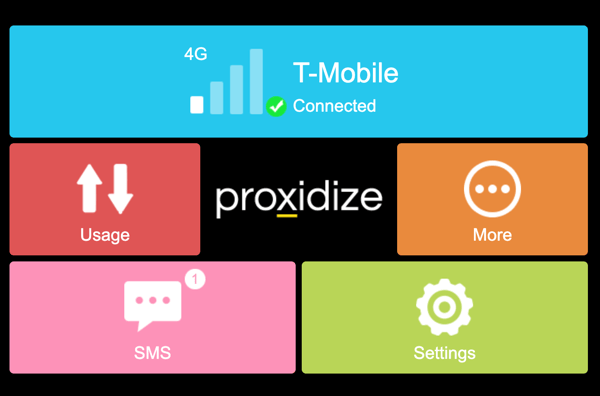
From the MX2 home screen, click the blue connection tile showing the carrier name.

-
Toggle the connection off.
-
Wait until the modem shows as disconnected.
Change the IP Mode
-
Go back to the MX2 home screen.
-
Open Settings.
[SCREENSHOT PLACEHOLDER: MX2 home screen with Settings highlighted.]
-
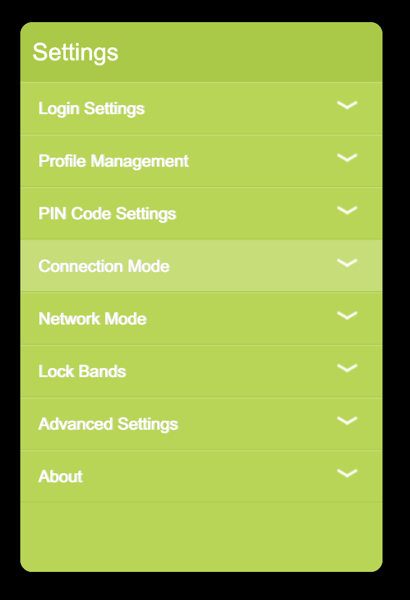
Open Connection Mode.
-
Change Connection Mode from Automatic to Manual.
-
Find Connection IP Mode.
-
Select the IP mode you want to use.
Common options may include:
Option What It Means IPv4 The modem uses IPv4 only. IPv6 The modem uses IPv6 only, if supported. IPv4/IPv6 The modem attempts to use both IPv4 and IPv6. 
-
Click Save or Apply.
Turn the Modem Connection Back On
-
Go back to the blue connection tile showing the carrier name.
-
Toggle the connection back on.
-
Wait for the modem to reconnect.
Confirm the Change Worked
After the modem reconnects:
- Open the modem status or diagnostic page.
- Check the assigned IP information.
- Confirm whether the modem received IPv4, IPv6, or both.
If IPv4/IPv6 mode is enabled but no IPv6 address appears, confirm whether your carrier supports IPv6 for that SIM and plan.
When to Use Each Mode
| Mode | When to Use It |
|---|---|
| IPv4 | Use this if your carrier or workflow only supports IPv4, or if IPv6 causes compatibility issues. |
| IPv6 | Use only if your carrier and use case require IPv6-only connectivity. |
| IPv4/IPv6 | Use this when your carrier supports IPv6 and you want compatibility with both IP versions. |
For most users, IPv4 or IPv4/IPv6 are the most common options.
Troubleshooting
| Issue | What to Check |
|---|---|
| IPv6 does not appear after enabling IPv4/IPv6 | Confirm the SIM carrier supports IPv6 on that SIM plan and location. |
| The modem does not reconnect | Return to the previous IP mode and reconnect the modem. |
| The WebUI does not open | Confirm your browser is connected to the correct modem proxy. |
| The wrong modem WebUI opens | Disable the proxy and reconnect using the proxy for the correct modem. |
| The menus look different | Check the modem manufacturer and firmware. Other modems may place IP mode under APN, profile, or network settings. |
| Proxy connectivity changes after the setting update | Revert the IP mode and check APN/carrier compatibility. |
Related Articles
- How Can I Access My MX2 Modem's Web Interface?
- Linux Agent: System Requirements & Supported Modems
- USB Modem Band Locking on Proxidize MX2 Modems
- Proxidize Modems Bands and Frequencies
Need Help?
If you have any questions, concerns, or need further clarification, feel free to reach out to us via live chat or email us directly at support@proxidize.com.