
What Is the Modem Web Interface?
The modem web interface is the modem's built-in settings page.
You may need to access the MX2 modem web interface to:
- Check modem connection status.
- Review signal or diagnostic information.
- Configure APN settings.
- Enable or disable dual-stack IPv4/IPv6.
- Review or change modem network settings.
- Access band locking settings on supported modems.
Most users do not need to open the modem web interface during normal use. Only change modem settings when you know what the setting does or when Proxidize Support asks you to.
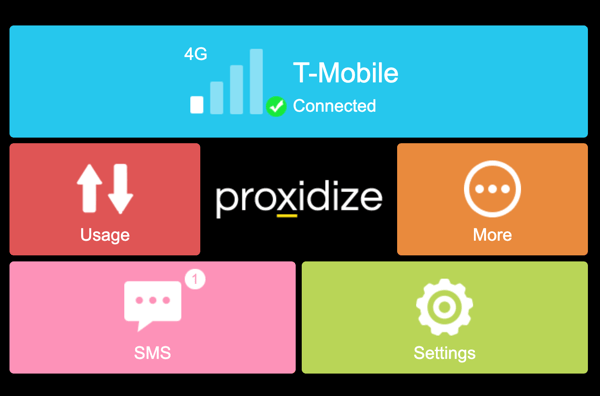
⚠️ Important: Use the Correct Modem Proxy
When you open a modem web interface, your browser must route traffic through the proxy of the specific modem you want to access.
This matters because multiple modems can use the same internal web interface address.
For example, several MX2 modems may all use:
192.168.1.1
The proxy you use determines which modem web interface opens.
If you use the wrong modem's proxy, you may open the wrong modem interface and change the wrong modem settings.
Modem Web Interface Addresses
This guide focuses on Proxidize MX2 modems.
The process is similar for other modem models, but each manufacturer may use a different default WebUI IP address.
Common modem WebUI addresses include:
| Modem Model | Web Interface Address |
|---|---|
| MX2 modem | http://192.168.1.1 |
| Huawei modem | http://192.168.8.1 |
| ZTE modem | http://192.168.0.1 |
Interface addresses and menus may differ depending on modem model and firmware.
To review currently supported modem models, see Linux Agent: System Requirements & Supported Modems.
Before You Start
You will need:
- The proxy host and port for the modem you want to access.
- The Proxidize Proxy Extension for Chrome or Firefox.
- The MX2 modem web interface address:
http://192.168.1.1. - The modem web interface password, if required.
If you are not sure which proxy belongs to which modem, check your Proxidize dashboard before continuing.
Install the Proxidize Proxy Extension
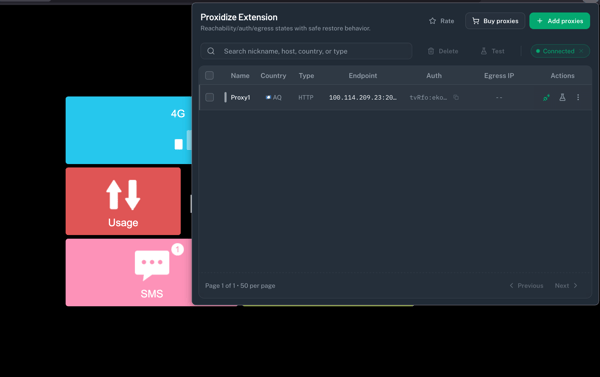
The Proxidize Proxy Extension lets you quickly connect your browser to a specific modem proxy, then open that modem's WebUI.
Install the extension for your browser:
Access the MX2 Web Interface Using the Proxidize Proxy Extension
-
Open the Proxidize Proxy Extension.
-
Enter the proxy details for the specific modem you want to access.
Use the modem's proxy host and port from your Proxidize dashboard. -
Enable the proxy in the browser extension.
-
Open a new browser tab.
-
Enter your modem's web interface address:
-
Wait for the MX2 modem web interface to load.
-
Log in if the modem asks for a password.
Confirm You Opened the Correct Modem
After the interface opens, confirm you are viewing the correct MX2 modem before changing anything.
You can check:
- Carrier name.
- Signal status.
- Connection status.
- SIM or network information.
- Any modem label or identifying information shown in the interface.
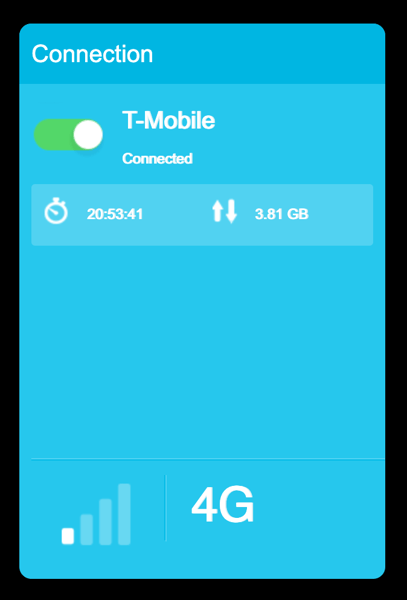
If the information does not match the modem you expected, disable the proxy and repeat the steps using the correct modem proxy.
What to Avoid Changing
Be careful when changing modem settings.
Changing the wrong setting can disconnect the modem or cause the endpoint to stop working.
Avoid changing these unless instructed:
- APN settings.
- Network mode.
- Band lock settings.
- SIM or PIN settings.
- DHCP or LAN settings.
- Profile management settings.
- Firmware or reset options.
If you need to make a change, write down the original setting first so you can restore it if needed.
Troubleshooting
| Issue | What to Check |
|---|---|
| The MX2 page does not open | Confirm the browser is using the proxy for the modem you want to access. |
| The router page opens instead | Confirm you are routing through the modem proxy and using http://192.168.1.1. |
| The wrong modem interface opens | Disable the proxy and re-enter the proxy host/port for the correct modem. |
| The page times out | Confirm the modem is online and the proxy is working. |
| Login password does not work | Confirm the modem model and whether the default password was changed. |
| Settings changed and the modem disconnected | Revert the setting if possible or contact Proxidize Support. |
Related Articles
- Linux Agent: System Requirements & Supported Modems
- USB Modem Band Locking on Proxidize MX2 Modems
- How to Enable/Disable Dual-Stack IPv4v6 on USB Modems
- Proxidize Modems Bands and Frequencies
Need Help?
If you have any questions, concerns, or need further clarification, feel free to reach out to us via live chat or email us directly at support@proxidize.com.